



The rise of coding agent tools such as Claude Code has made terminal management a much more central part of the day-to-day development workbench. Terminals are no longer temporary scratch space. They often represent distinct, long-running parts of a project, each with its own name, working directory, and purpose.
Our own terminal configuration commonly includes several named Claude Code sessions, each with its own name inside Claude Code and remote control enabled by default. We also tend to keep one PowerShell terminal open for running Windows commands and one WSL terminal for working directly within Windows Subsystem for Linux. It is therefore not unusual for us to have three to five terminal tabs open within a single project.
VS Code already supports persistent terminal sessions, but its native features are spread across terminal profiles, tasks, settings, and workspace permissions.
Terminal Session Profiles brings those pieces into one UI and adds reusable workspace or global profiles, ordered startup commands, automatic reprovisioning, and optional Claude session resume commands.
Terminal session profile manager
A profile is a saved terminal setup: which shell to open, where, and what to run once it is ready. Create one from the sidebar’s +, or right-click any terminal and choose Save as Instance Profile to start from a terminal you already have open.
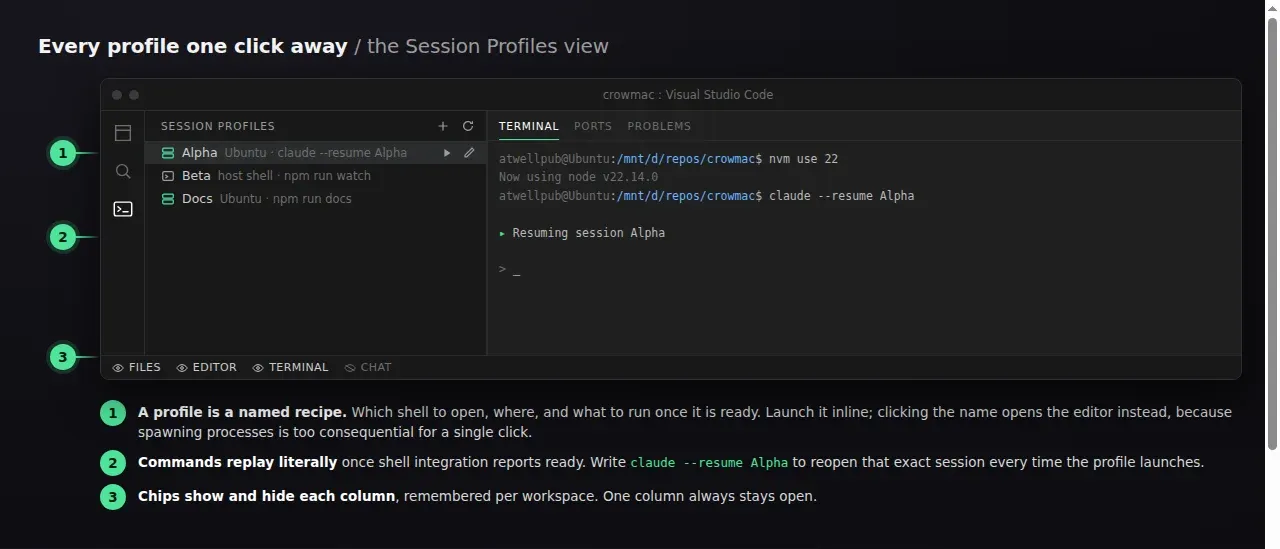
Profiles can be created from the Session Profiles sidebar or saved from a terminal that is already open. Once created, each profile remains available within the project and can be launched whenever it is needed.
A typical project might include separate profiles for several named Claude Code sessions, a development server, a build watcher, a general PowerShell terminal, and a WSL terminal. Instead of manually rebuilding each of these environments, they become reusable parts of the project.
Each profile includes:
- A profile name
- A shell
- A working directory
- An ordered list of commands
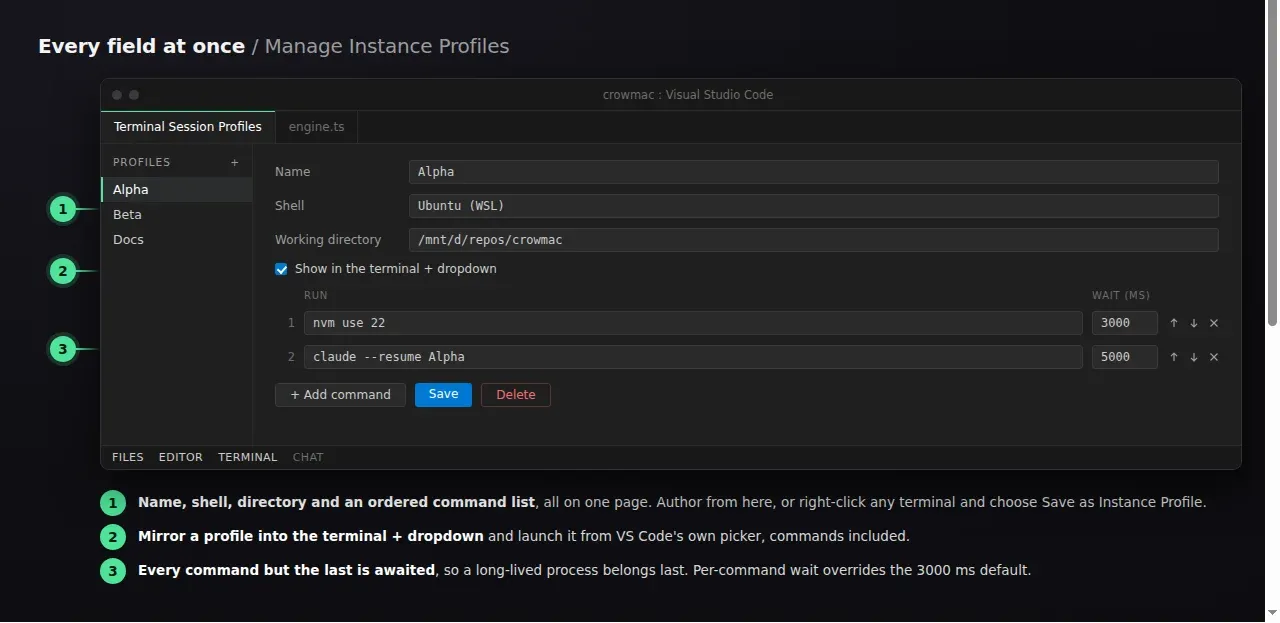
Commands are replayed literally and in the order they are written. Every command except the final one is awaited before the next begins. This allows a profile to prepare an environment before launching a long-running process such as an agent, development server, or file watcher.
For example, a profile can use:
claude --resume ClaudeCodeSessionNameto reopen a particular named Claude Code session.
This allows each terminal profile to correspond directly with a specific Claude Code session. A project can maintain several independently named agents, each launched in the correct working directory with its intended session restored.
Commands are not limited to coding agents. A profile can also activate an environment, start a local server, launch a build process, open a project-specific shell, or perform any other command-line preparation the project requires.
Profiles can optionally be added to the terminal + dropdown as named terminal profiles. This allows them to remain accessible through VS Code’s familiar terminal controls while still benefiting from the command replay managed by the extension.
Restoring profiles after a restart
VS Code includes native terminal persistence, but restoring a terminal tab is not necessarily the same as restoring the terminal session that previously occupied it.
A restored tab may retain its old name and scrollback while reopening as a new default shell with none of its previous processes running. The tab looks familiar, but the environment it represented is no longer there.
Terminal Session Profiles handles the other half of that recovery.
Profiles that were running are remembered per workspace. When the project is opened again, the extension identifies the restored terminal tabs associated with those profiles and relaunches them using the correct shell, working directory, and command sequence.
Restoration happens automatically by default. It can also be started manually with Restore Last Session in the Command Palette.
Each profile also decides when it takes part. Under Open on startup in the profile editor, a profile can open every time the project opens, open only if it was open last time, or never open on its own. The middle option is the default, and describes what most people mean by restoring a session.
A profile that states no preference follows the terminalSessions.autoLaunch setting, which accepts the same three values and can be set for one project or for all of them. The most specific answer wins, so a profile overrides a project and a project overrides your user settings.
Before replacing a restored terminal, the extension compares the process recorded when the profile was launched with the process that returned. If the original process genuinely survived, the terminal is left alone rather than being terminated and recreated.
The objective is simple: reopening a project should also restore the terminal environment that belongs to it.
Optional workspace layout
By default, VS Code places the terminal in a horizontal panel beneath the primary workspace, while the Explorer, editor, and AI chat interface occupy the taller areas above it. This arrangement reflects a workflow in which the terminal is treated as a supporting tool rather than one of the main places where work happens.
That was no longer true for us. As Claude Code and other terminal-based tools became a larger part of our development process, the terminal became just as central as the editor, and sometimes more important. We wanted the option to bring it into the primary workspace as its own column, alongside the Explorer, editor, and chat interface, rather than leaving it confined to a secondary row at the bottom of the IDE.
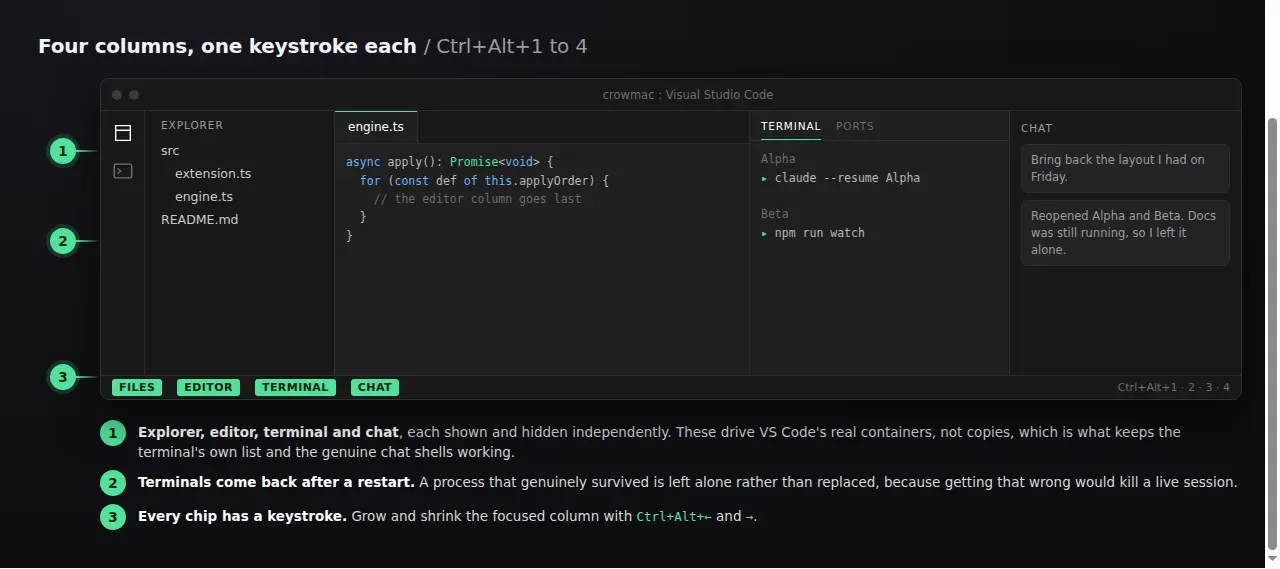
Once each of these areas became a meaningful part of the daily workbench, we also needed better ways to control focus and move quickly between them. The layout enhancements provide status-bar controls for showing and hiding the Explorer, editor, terminal, and chat areas, with each workspace remembering its own arrangement.
The layout controls VS Code’s real interface containers rather than replacing or recreating them. The Explorer remains the standard Explorer. The terminal retains its normal terminal list and controls. Claude Code, Codex, and other chat interfaces continue to operate within their existing panels.
This is important because the layout enhancement does not attempt to introduce a replacement workspace. It provides faster controls for arranging the tools already present in VS Code.
One column always remains visible, preventing the workspace from being reduced to an empty window. A Reset Layout command restores the standard arrangement whenever needed.
We felt these improvements belonged naturally within the same extension because they address the workspace surrounding the terminal sessions it manages. The layout remains entirely optional and can be disabled through the extension settings without affecting session profiles, command replay, or terminal restoration.
Independent features
The terminal session profile manager and the column layout are related enhancements, but neither depends on the other.
Disabling the column layout does not disable profiles. Saved profiles can still be launched, their commands can still be replayed, and active profile sessions can still be restored when a project reopens.
Layout preferences are also remembered separately for each workspace. A project in which the layout has been disabled will remain that way across restarts, while another workspace can continue using the column arrangement.
There is deliberately no master switch inside the extension that disables every feature at once. The column controls manage the layout, while the session settings manage profile restoration. The extension itself can still be disabled through VS Code’s Extensions view.
Keyboard and workspace controls
The extension includes commands for managing profiles, restoring sessions, navigating the column layout, and resetting the workspace.
Default shortcuts include:
| Action | Shortcut |
|---|---|
| Toggle Explorer | Ctrl+Alt+1 |
| Toggle editor | Ctrl+Alt+2 |
| Toggle terminal | Ctrl+Alt+3 |
| Toggle chat | Ctrl+Alt+4 |
| Open a new terminal in the terminal column | Ctrl+Shift+` |
| Grow the focused column | Ctrl+Alt+Right |
| Shrink the focused column | Ctrl+Alt+Left |
Additional commands are available through the Command Palette and status-bar controls for creating profiles, editing profiles, restoring the last session, enabling or disabling the layout, and resetting the workspace arrangement.
Install
Search for Terminal Session Profiles in the VS Code Extensions view.
You can also install it through Quick Open with Ctrl+P:
ext install GBTI.gbti-terminal-sessionsTerminal Session Profiles is published through the Visual Studio Marketplace as:
GBTI.gbti-terminal-sessionsIt is also available through Open VSX for VSCodium and compatible editors.
Terminal Session Profiles is free, open source, and licensed under MIT.
From the author
Hudson AtwellMultiple terminals are now a staple of ongoing development work. Instead of rebuilding named Claude sessions, servers, PowerShell tabs, and WSL environments each time VS Code restarts, Terminal Session Profiles saves the complete setup and brings it back ready to use.
0 Comments
Comments are for members. Become a member to join the conversation, or if you already are.
You are signed in as a member. .