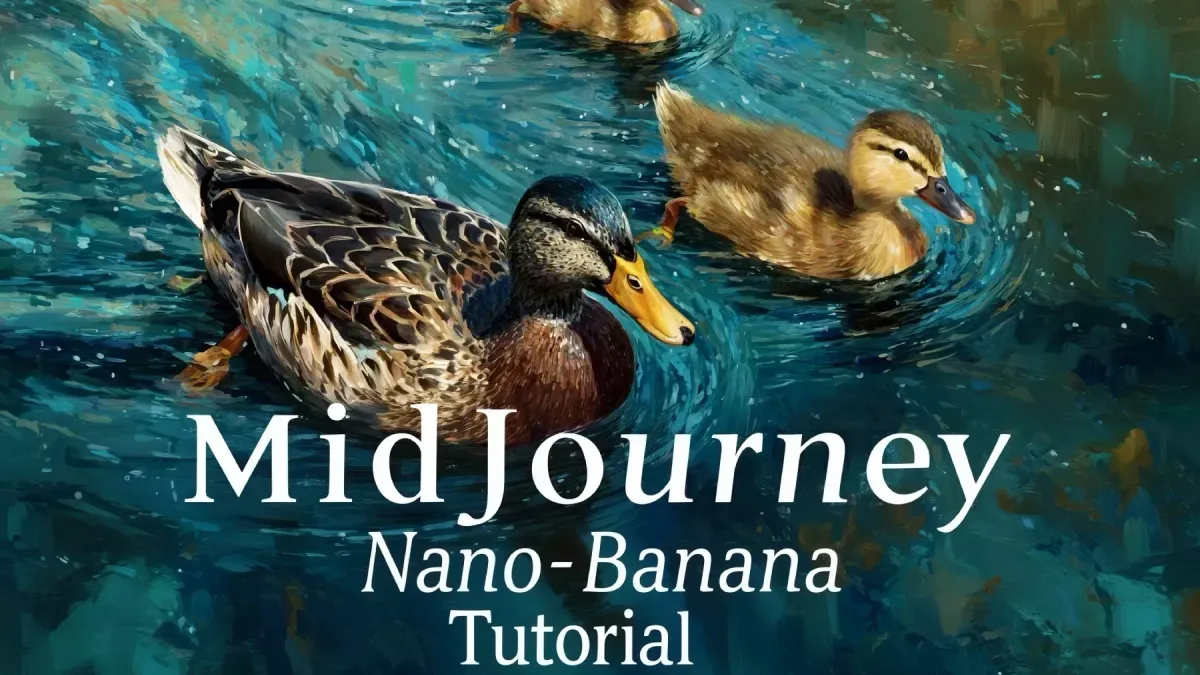
Since 2022, MidJourney has remained one of the world’s greatest AI image generators, helping users to produce captivating images and compositions through text prompts.
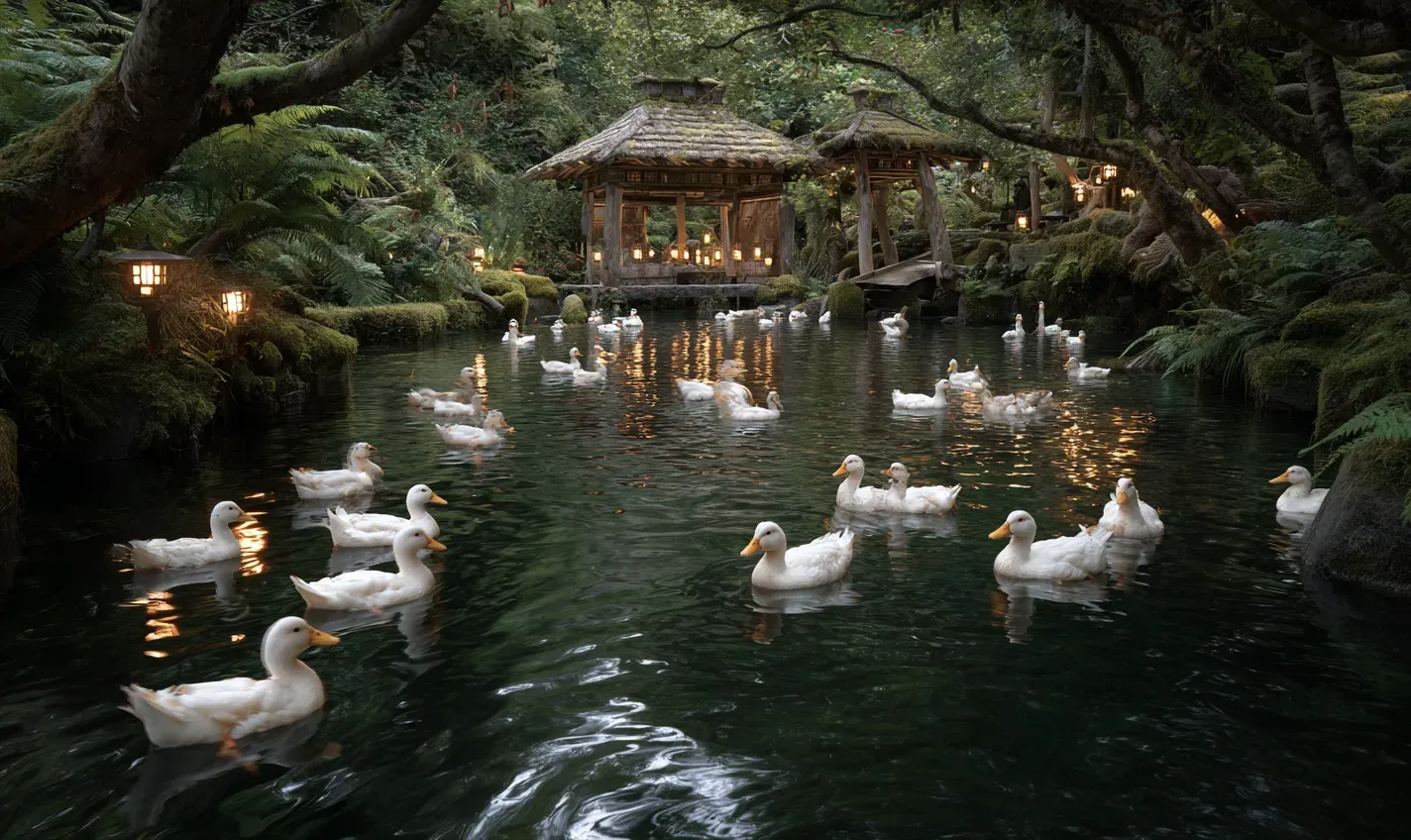
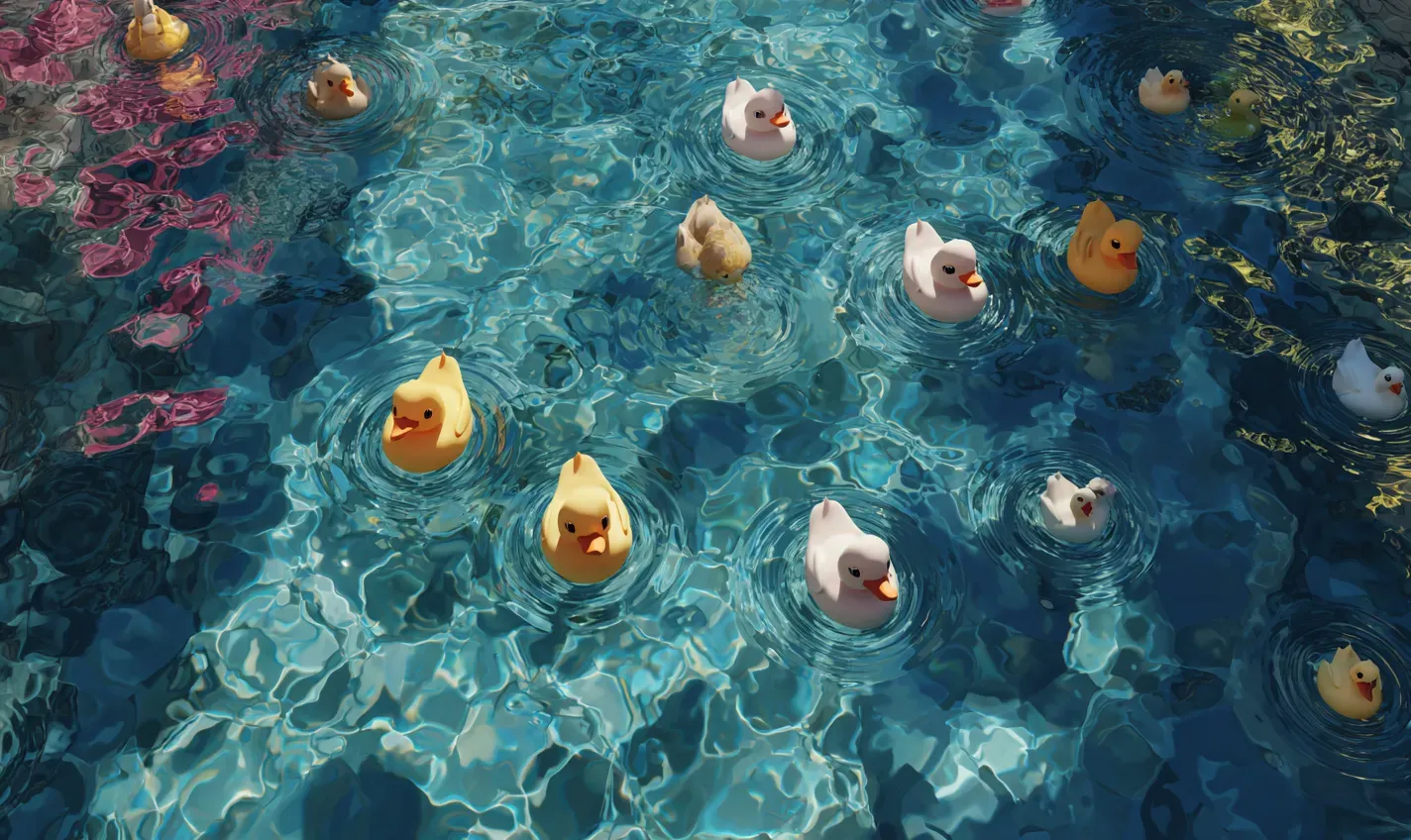
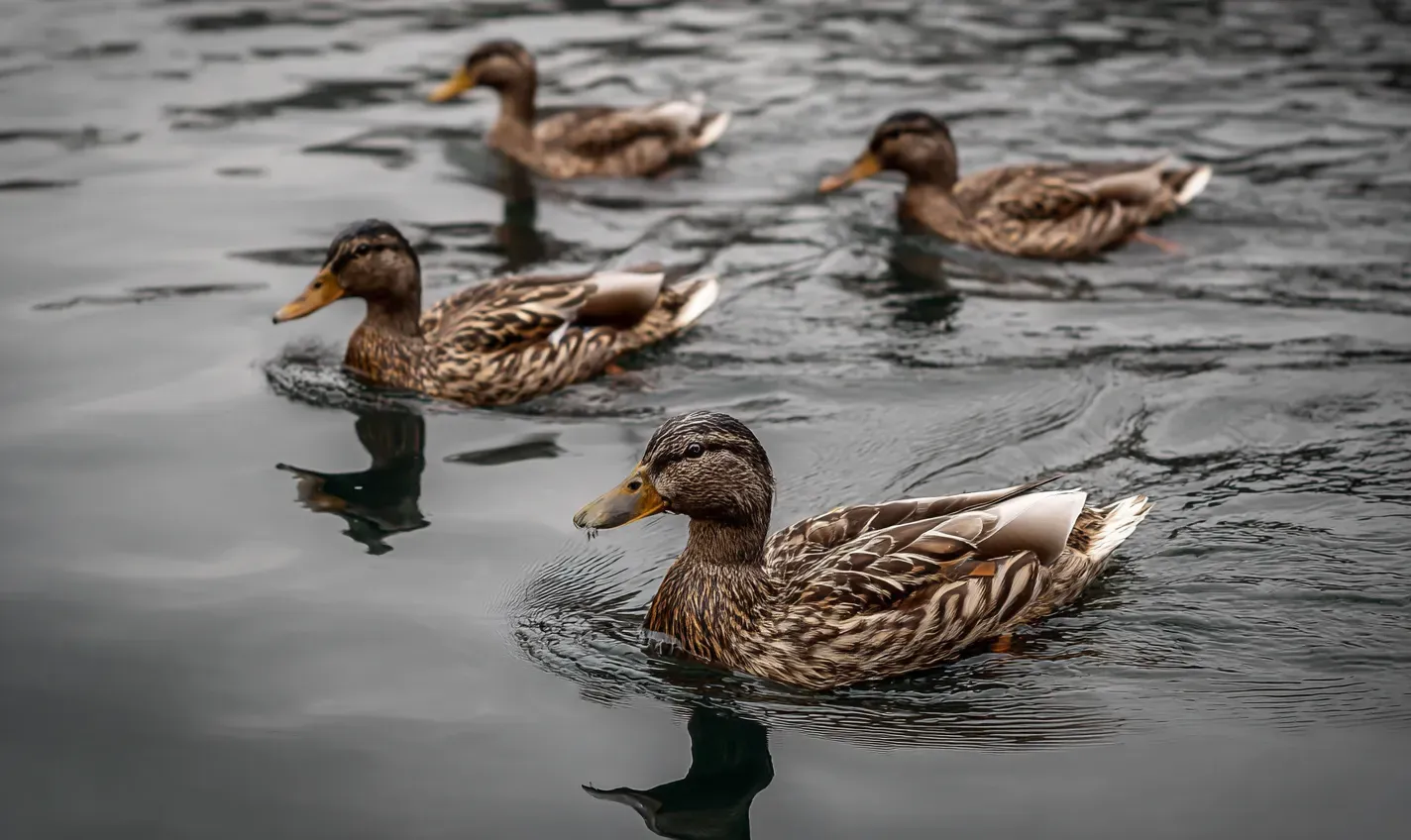
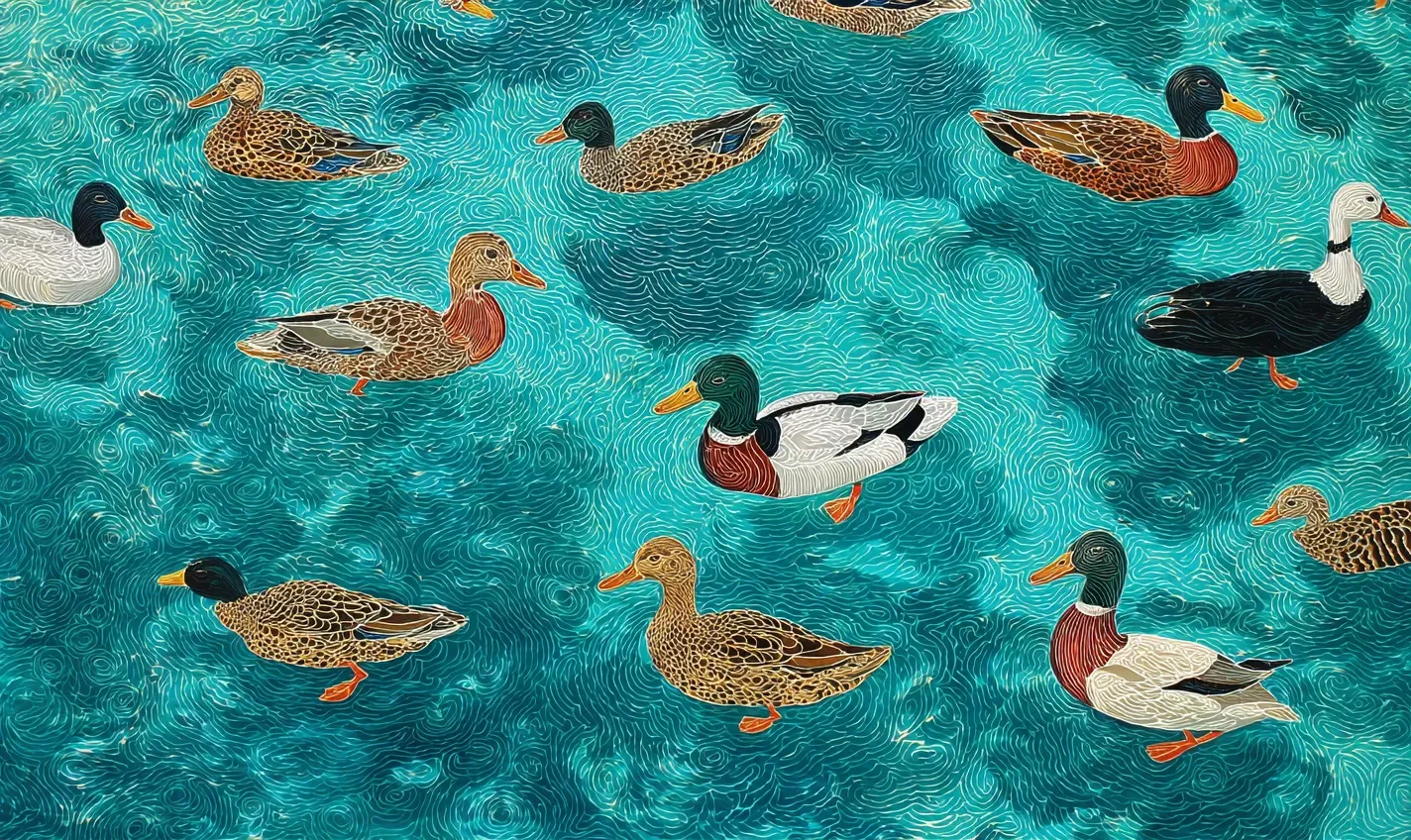
To help give an idea of the images it generates, let’s try generating a few image variations using a prompt:
Copied!
All the ducks are swimming in the water –ar 5:3
And here are our generated images.
As long as I’ve worked with MidJourney (since its beginnings), one of its most significant weaknesses has been adding text on top of images.
MidJourney is decent at producing the semblance of text in an attractive style, but the text itself almost always comes out garbled and inaccurate.
Let’s give this a try using a similar prompt, but this time asking it to add some text on top of our image:
Copied!
Many ducks swimming in the water with large text “Midjourney + Nano Banana Tutorial”, stylized, overhead view, blues, browns greens.
And here are a few of the variations MidJourney was able to produce:
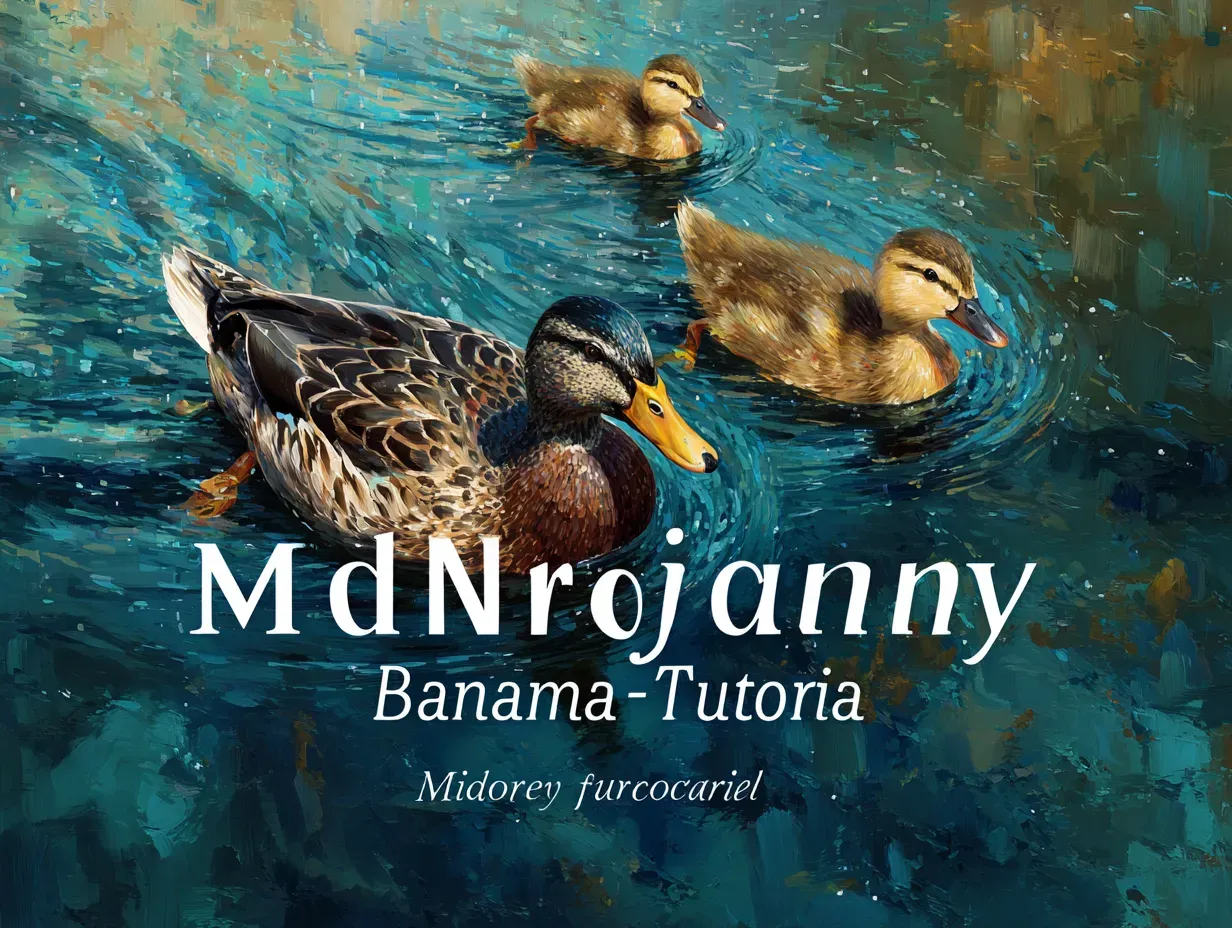
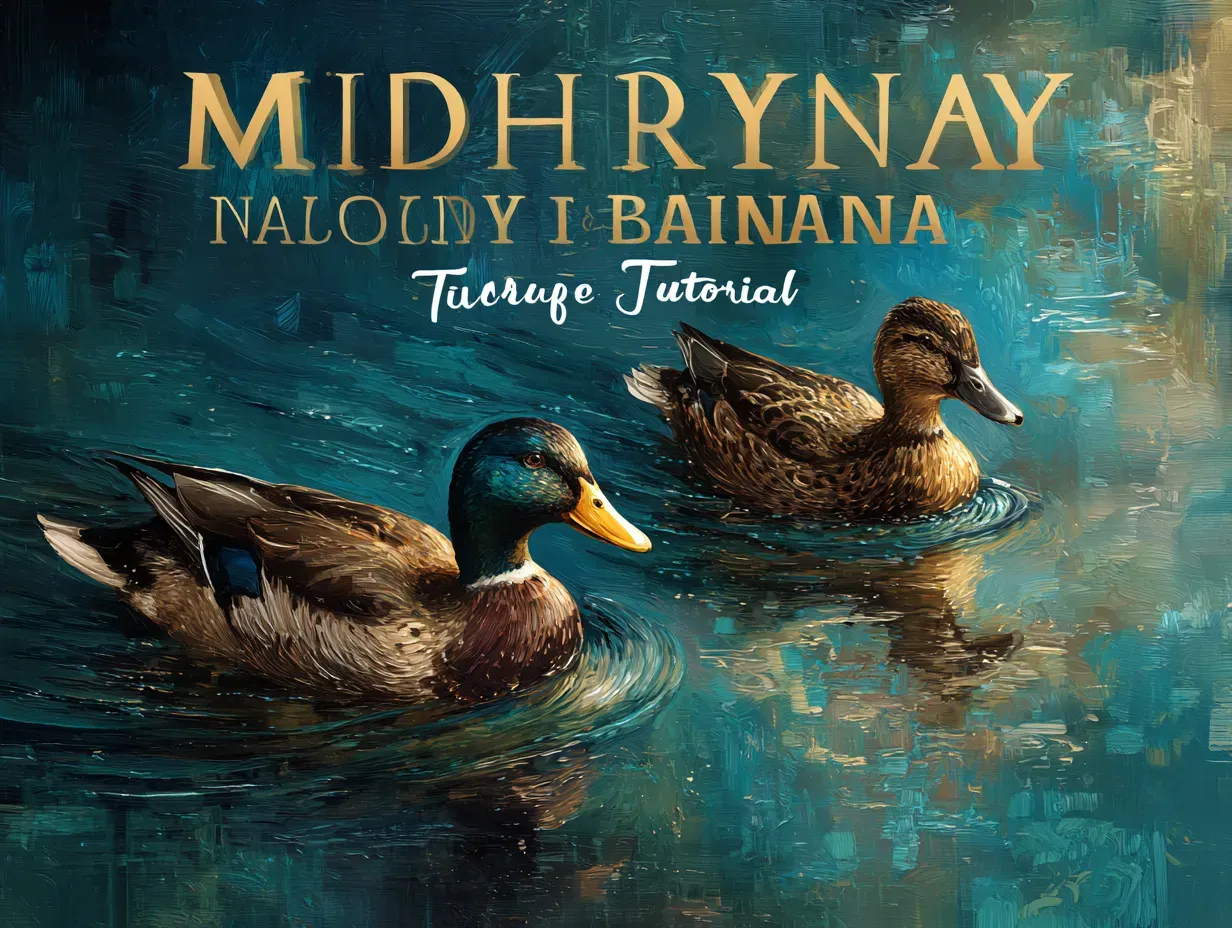
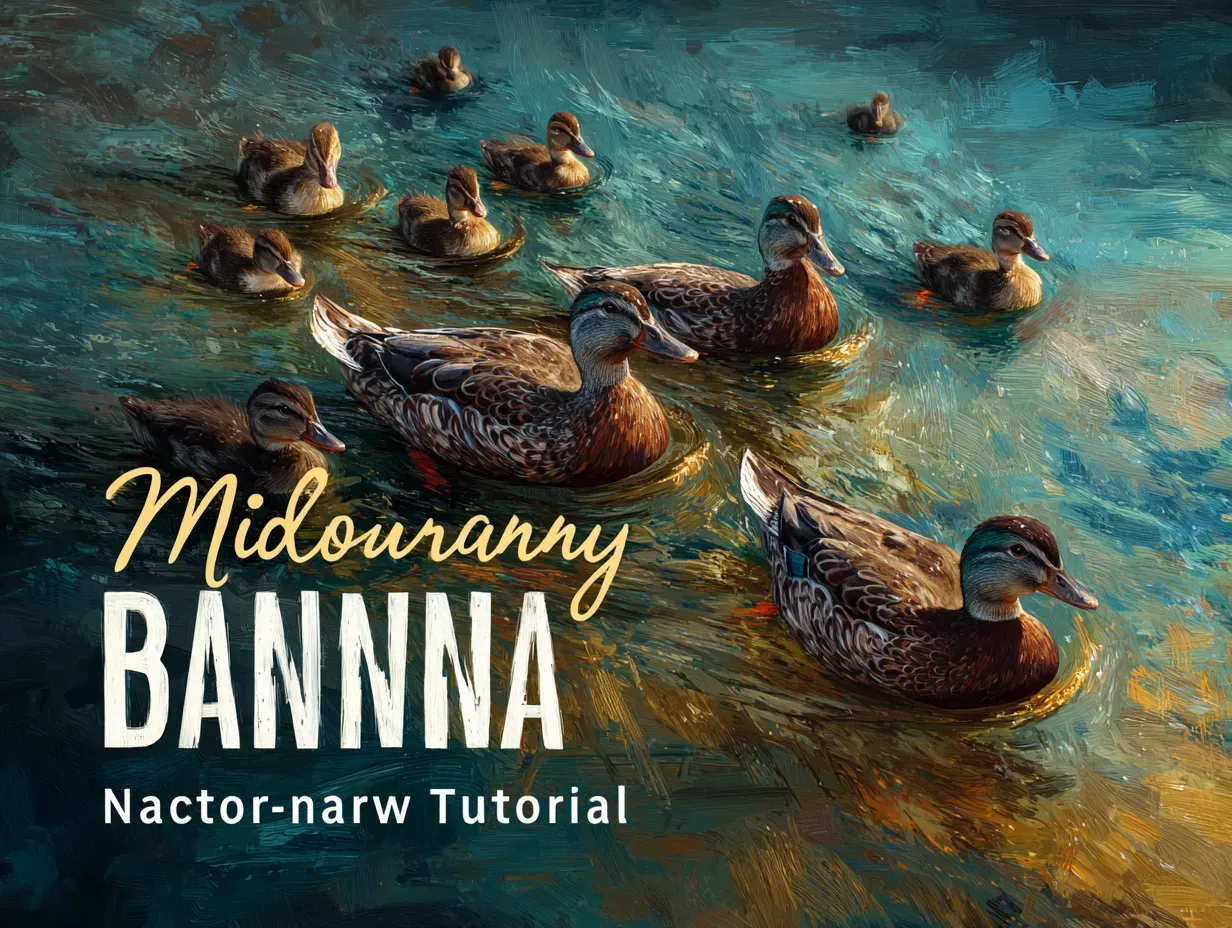
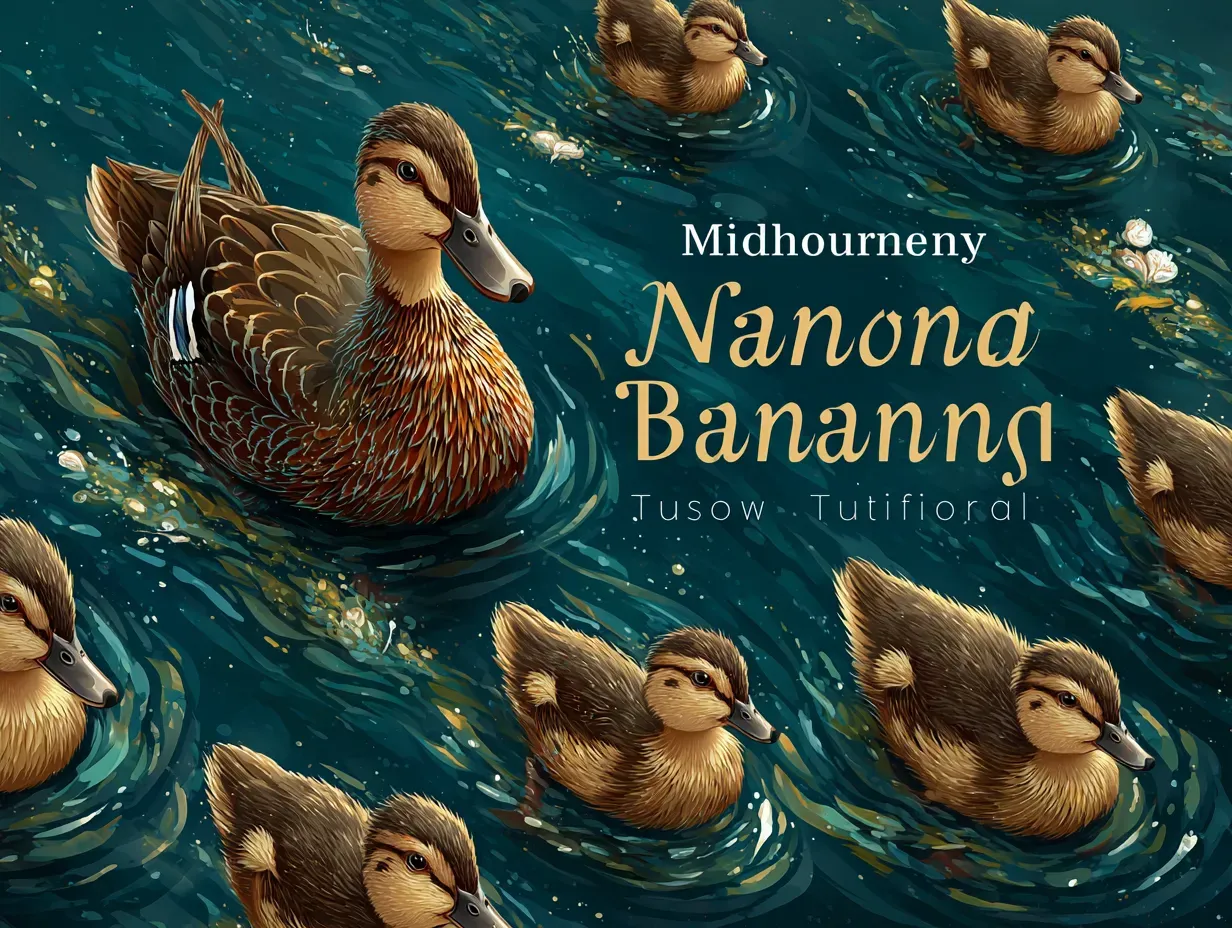
As you can see, MidJourney offers us impressive compositions, but the text that was rendered was not what we asked for. Unfortunately, it would be very time-consuming and difficult to fix using traditional tools like Photoshop.
If it were not for other modern AI-based tools like Nano-Banana, we would probably have to abandon this text composition or try to recreate it manually, but for the sake of exploration let’s continue on with how we can use Nano-Banana to fix the garbled text that MidJourney produced for us.
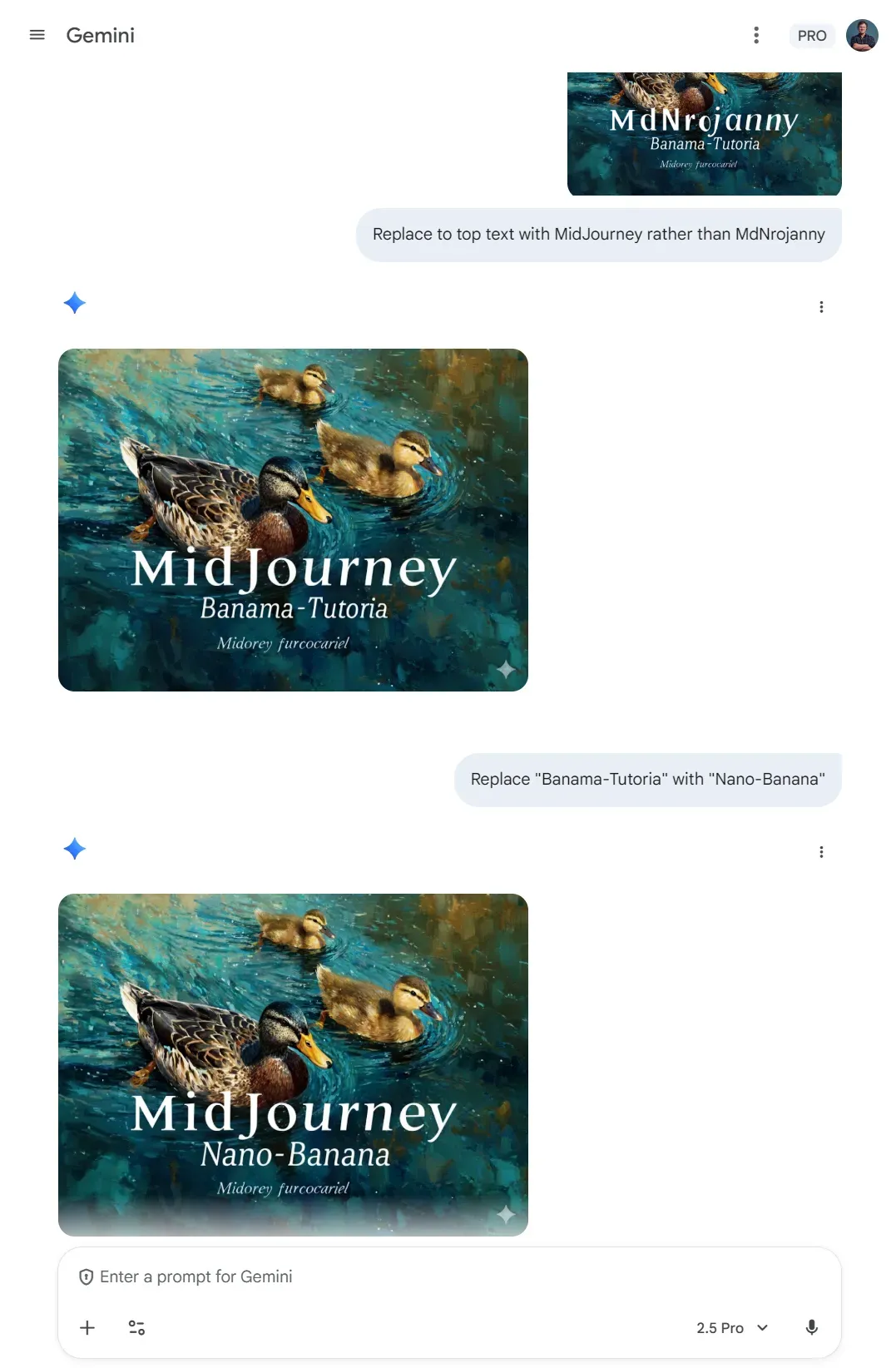
In the screenshot below, we demonstrate where we have opened up Nano-Banana in a browser, uploaded our image, and asked it to help with correcting the text:
And the final result:
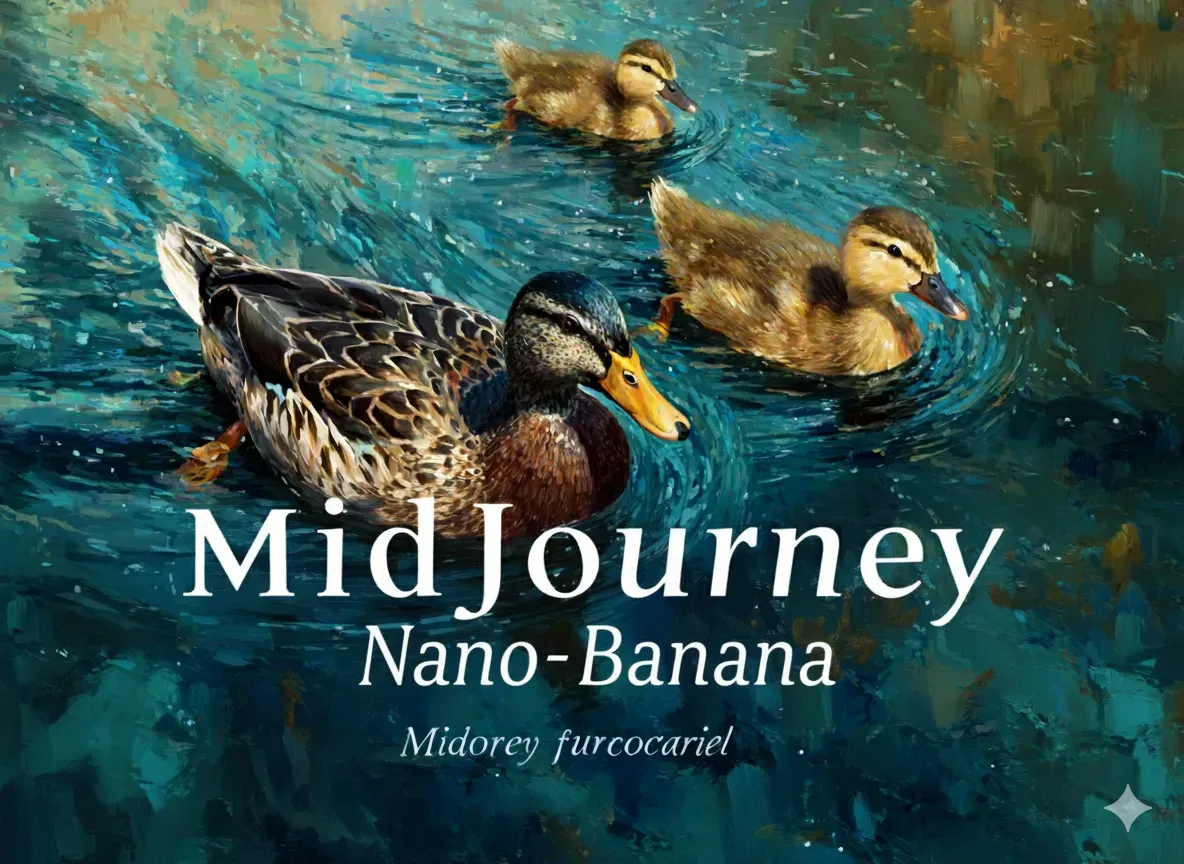
We are in a better position than we were before, but there are still several issues we need to take care of:
- We lost some styling/character from our font when NanoBanana regenerated it. (Unfortunately, we were not able to recover this.)
- We still need to replace “Midorey furcocariel” with “Tutorial”. (When we attempted this using NanoBanana, it resized it to be too large and we determined that we would have better luck in MidJourney’s editor)
- We have a watermark from Nano Banana that we need to remove.
- We experienced quality loss in our image when Nano-Banana edited it.
To attempt to correct all of these issues, we will take our modified image back to the MidJourney app, where we can use its powerful editing tool.
The MidJourney Editor
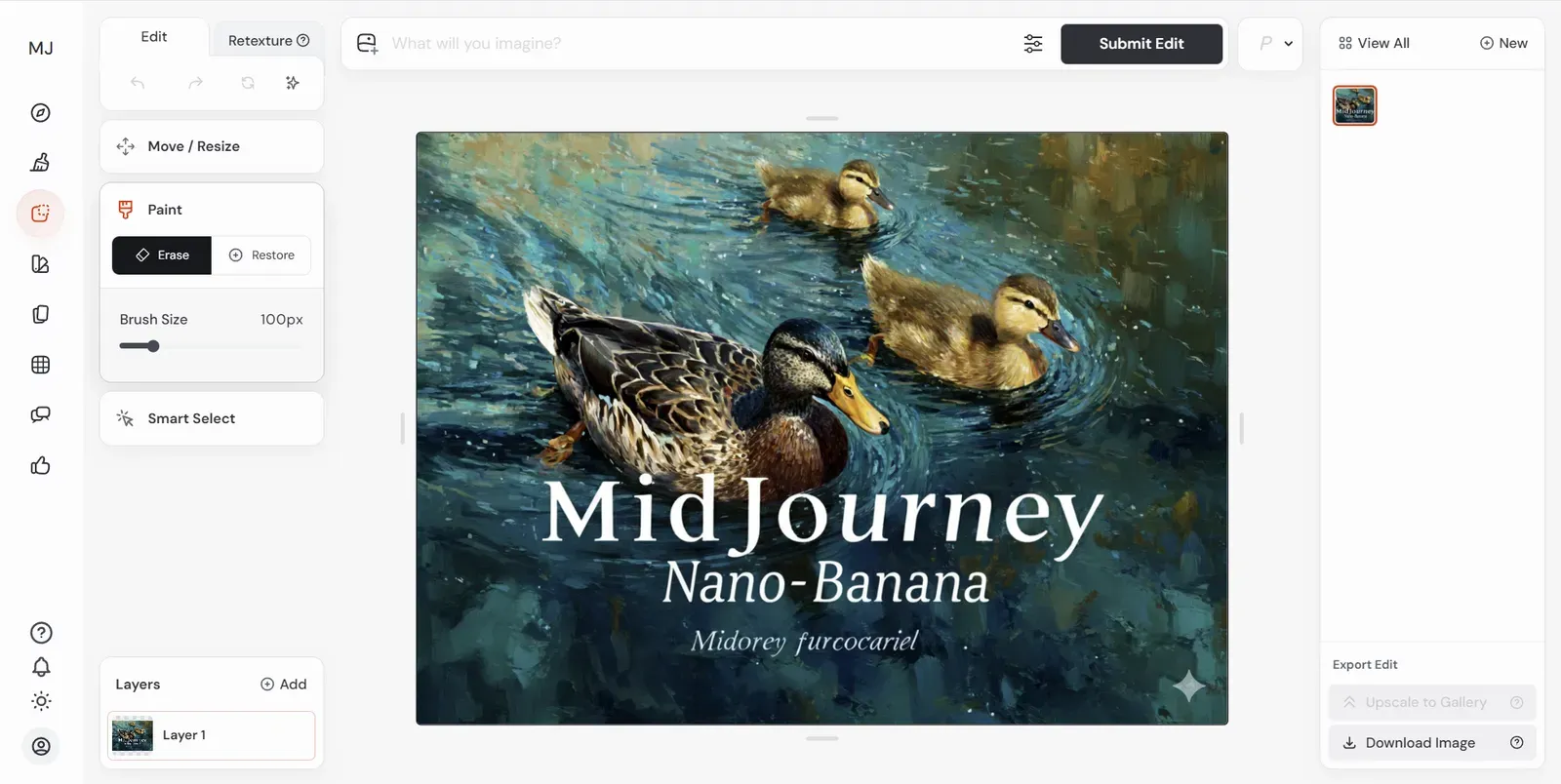
Here is a quick look at what the editor looks like. We’ve loaded our image into it and are about to begin our corrective work.
Fixing and Restoring Fonts
To begin with, let’s attempt to fix our last bit of garbled text by replacing it with the word “Tutorial”.
We use our eraser tool to delete the word and we use a prompt to guide our restorative efforts:
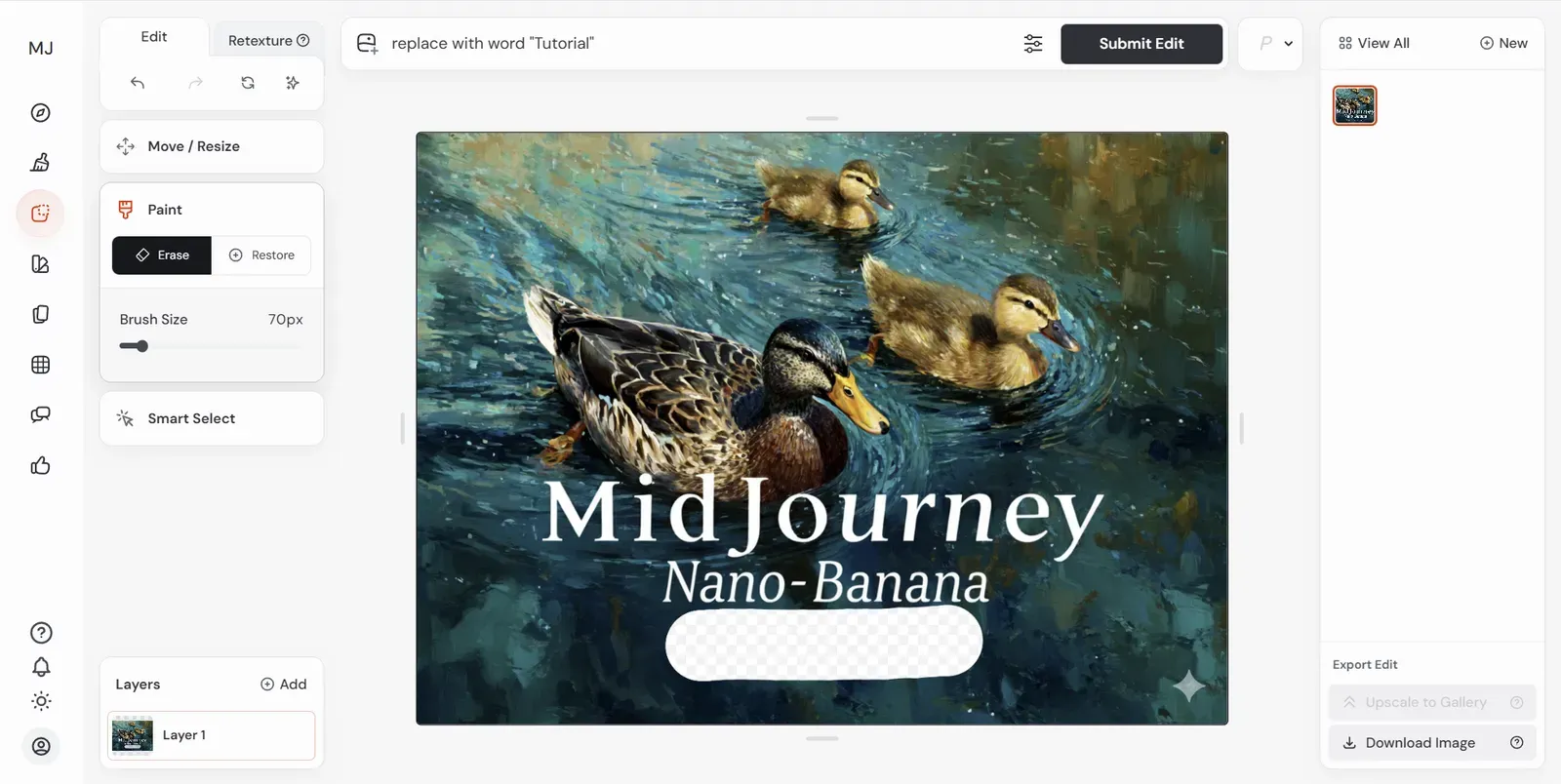
When we submit, MidJourney’s edit tool will provide us with variations we can look through, selecting the one we like best. We can do this several times, too, variating the prompt until we have one we like the best.
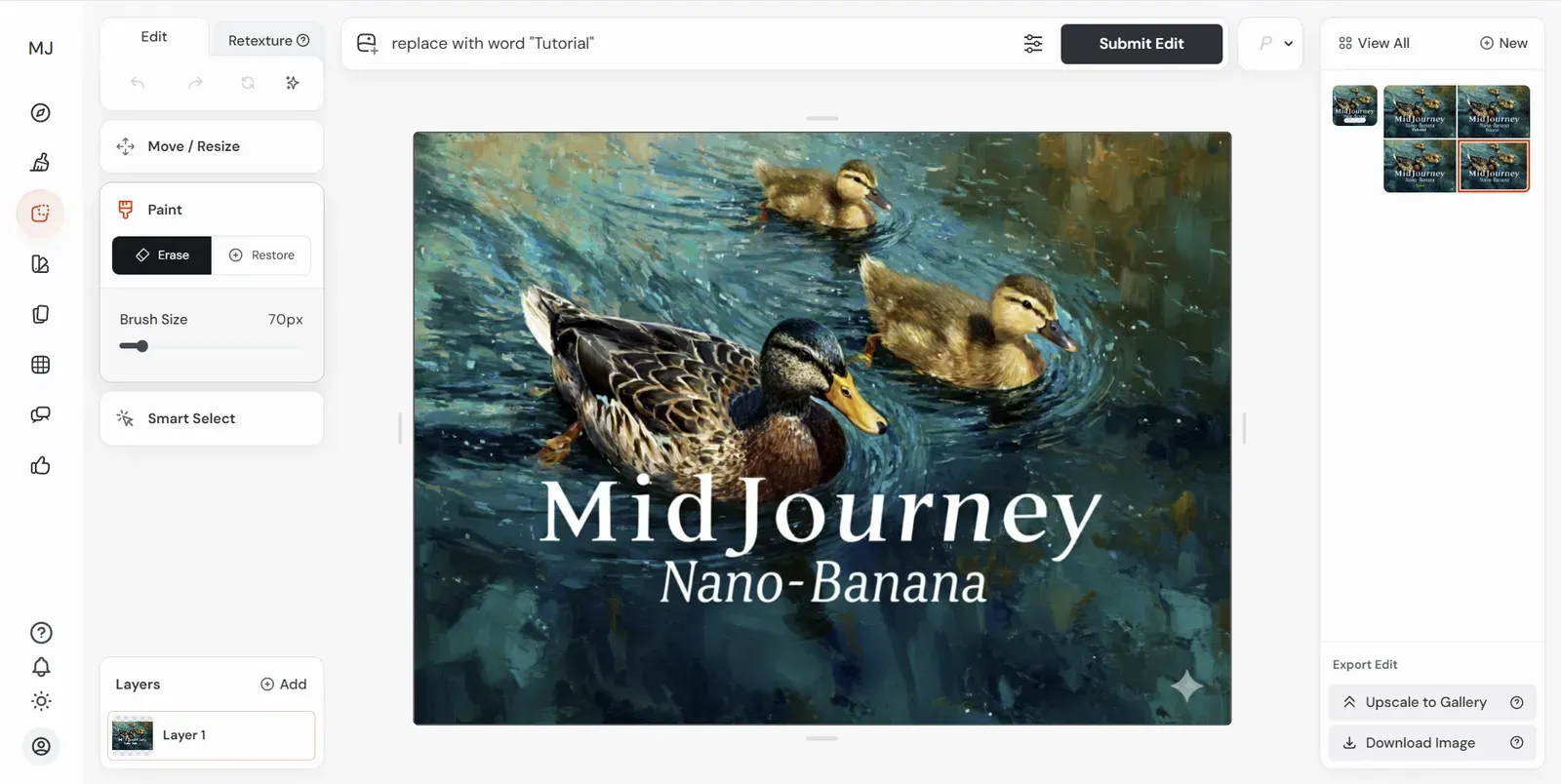
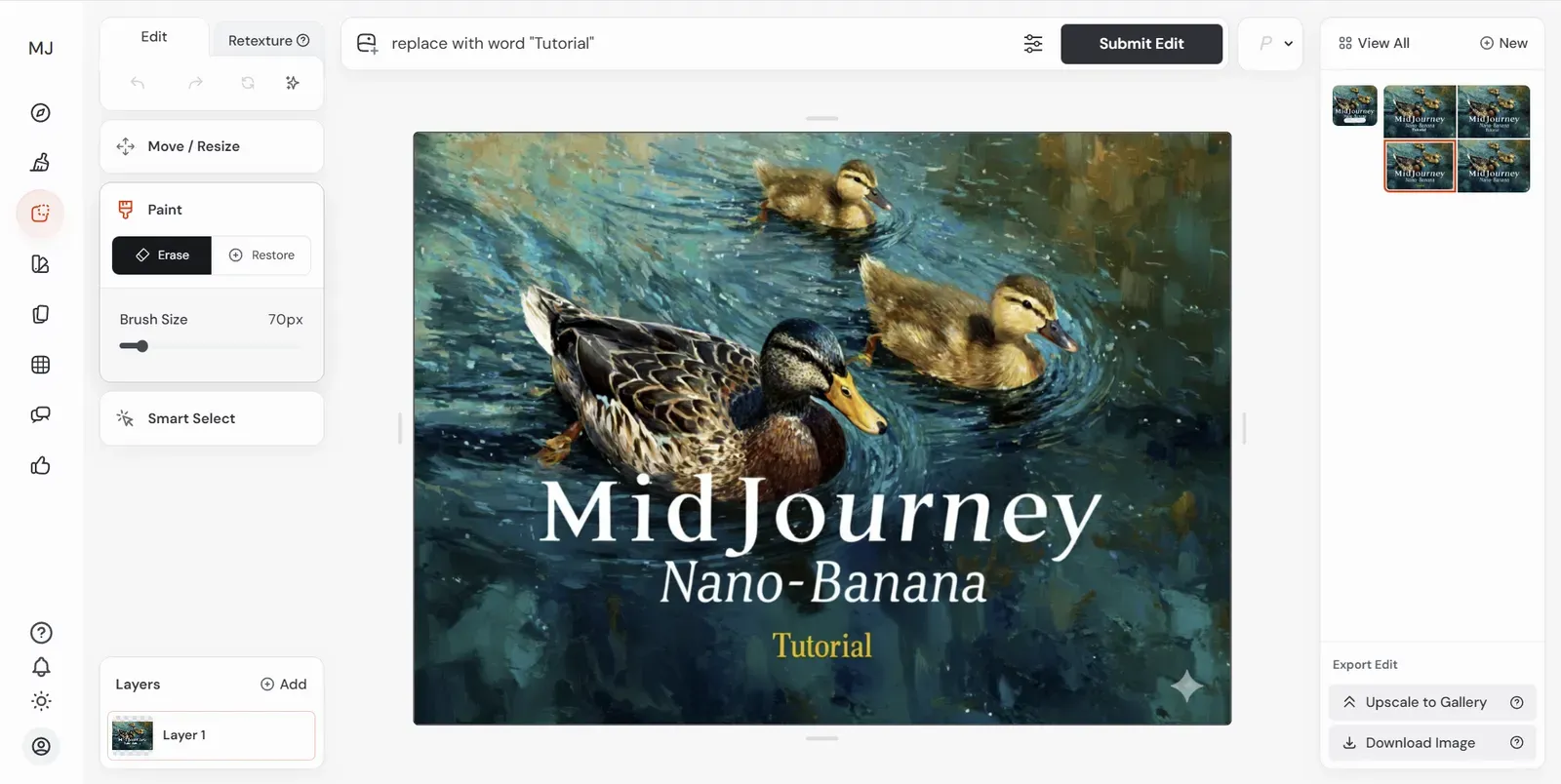
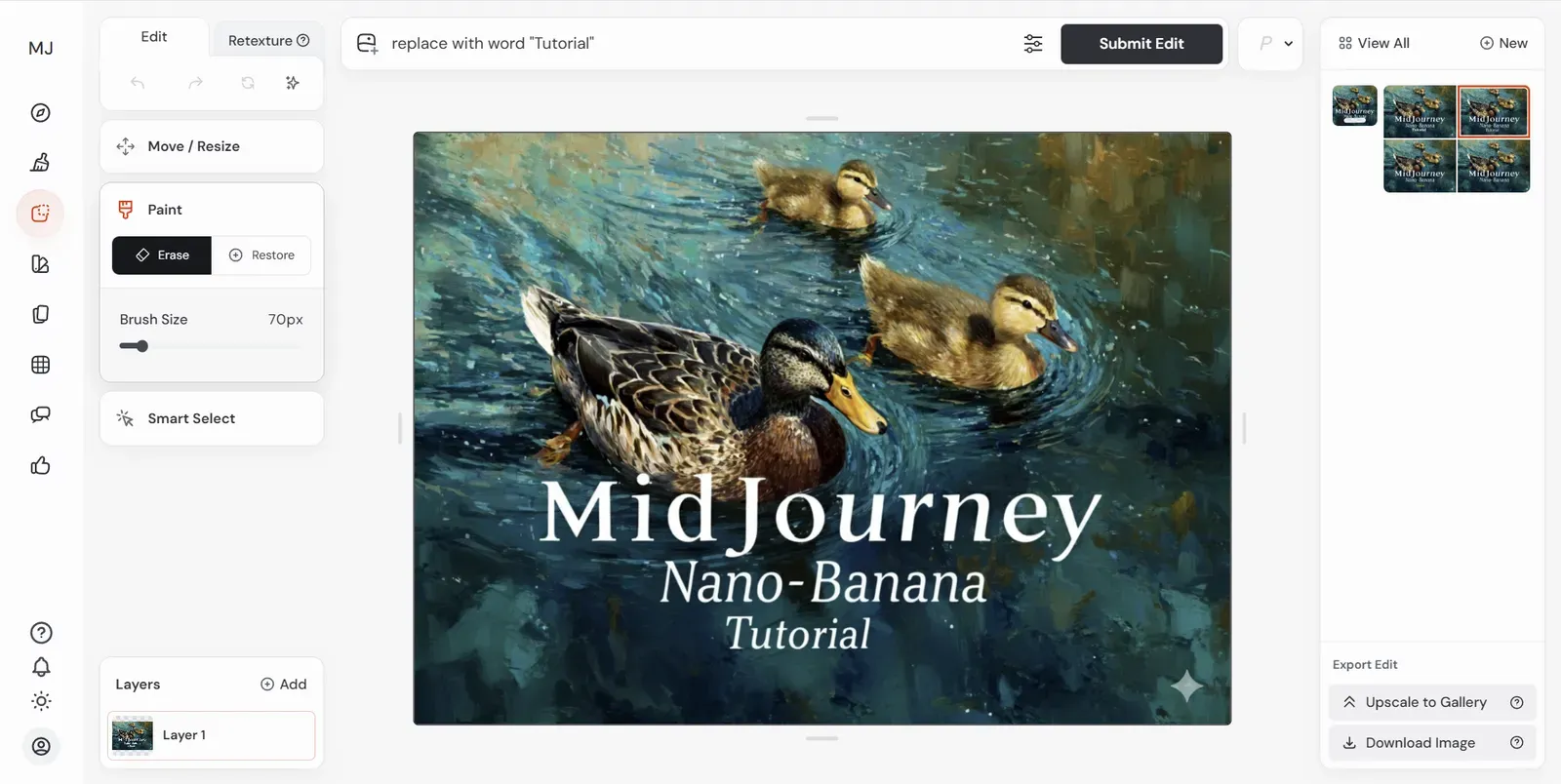
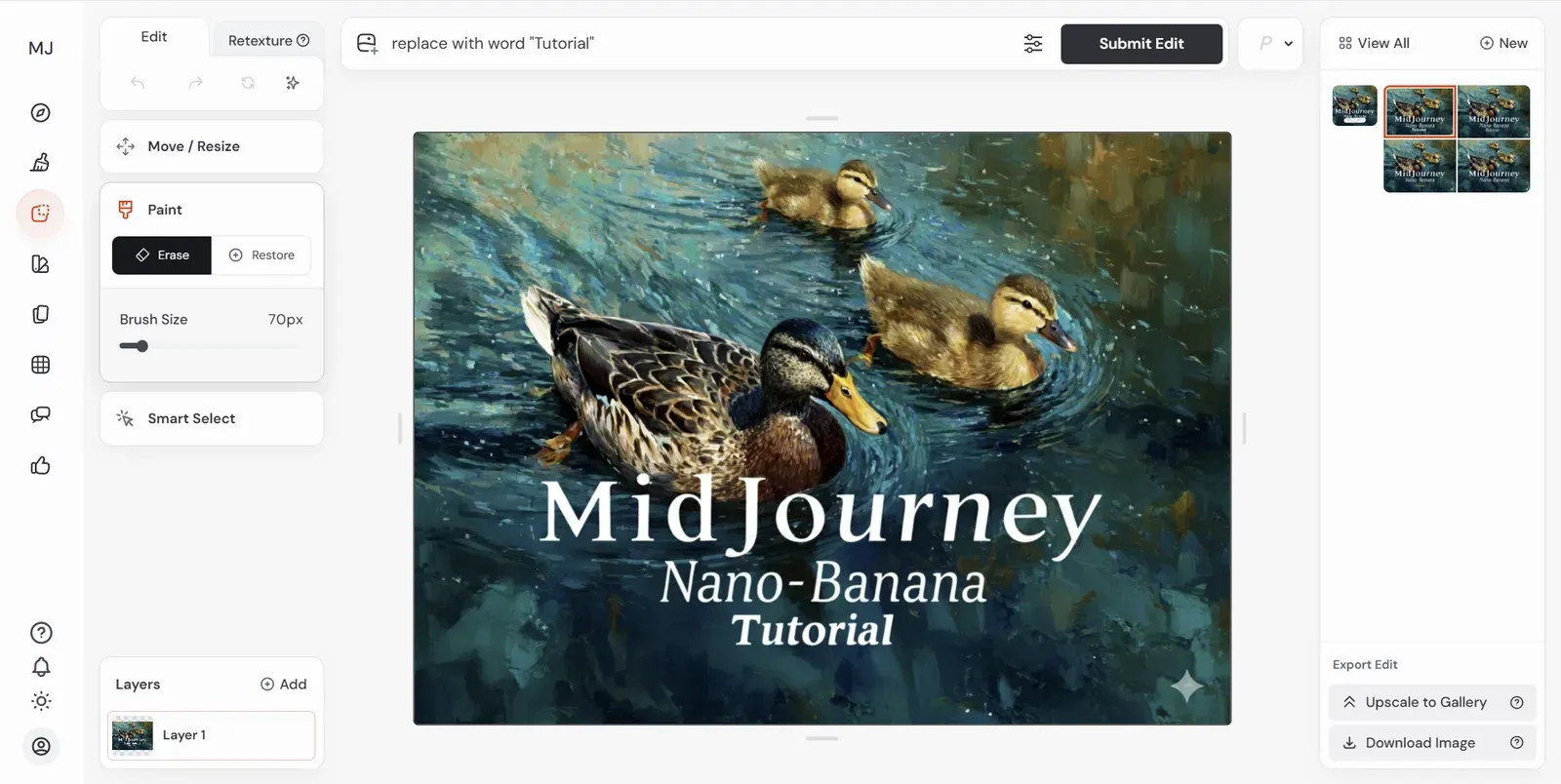
The one we chose may not be the best, and we could have spent more time generating better ones, but for the sake of time and demonstration, this variation is all right.
Removing the Nano-Banana Watermark
Next, for a quick win, let’s remove the Nano-Banana watermark using the same method. We will use a variation we like the best as a starting point.
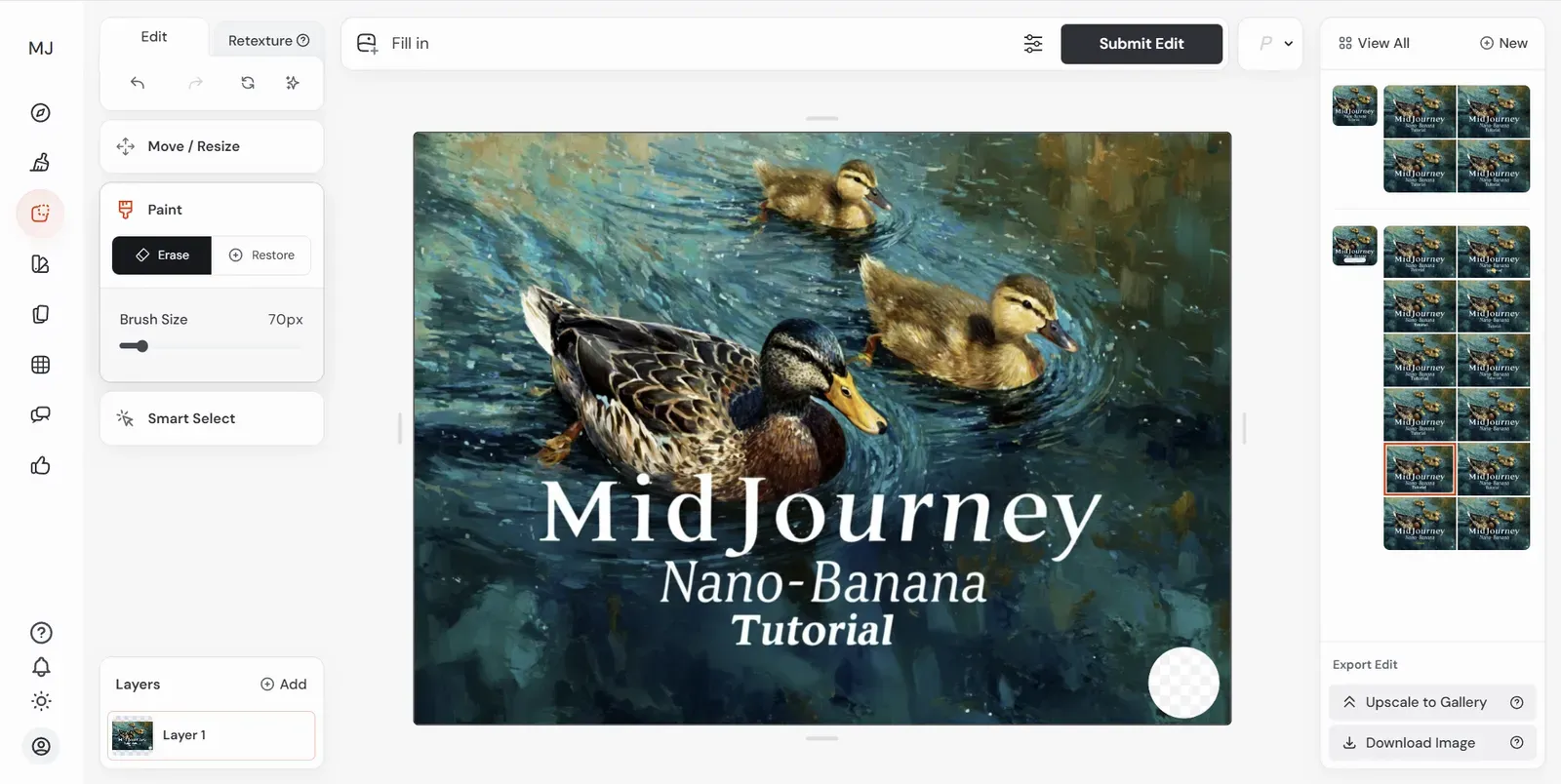
And the result shows that we were able to remove it with a generative fill.
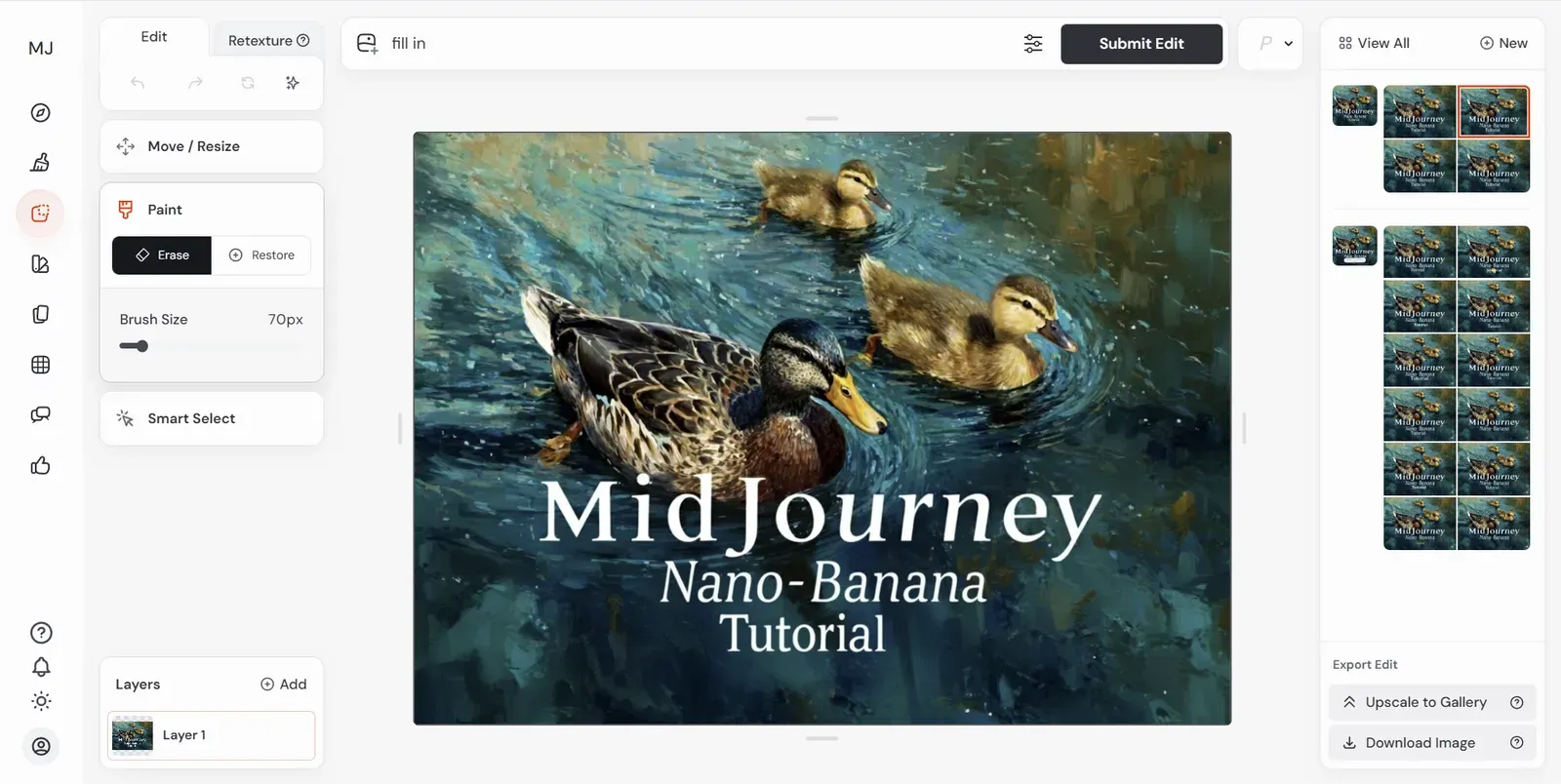
Addressing Quality Loss Through Upscaling
Finally, we want to attempt to restore any quality loss from the transfer from MidJourney to Nano-Banana. We can do this by taking the final image we edited and upscaling it to our MidJourney Gallery:
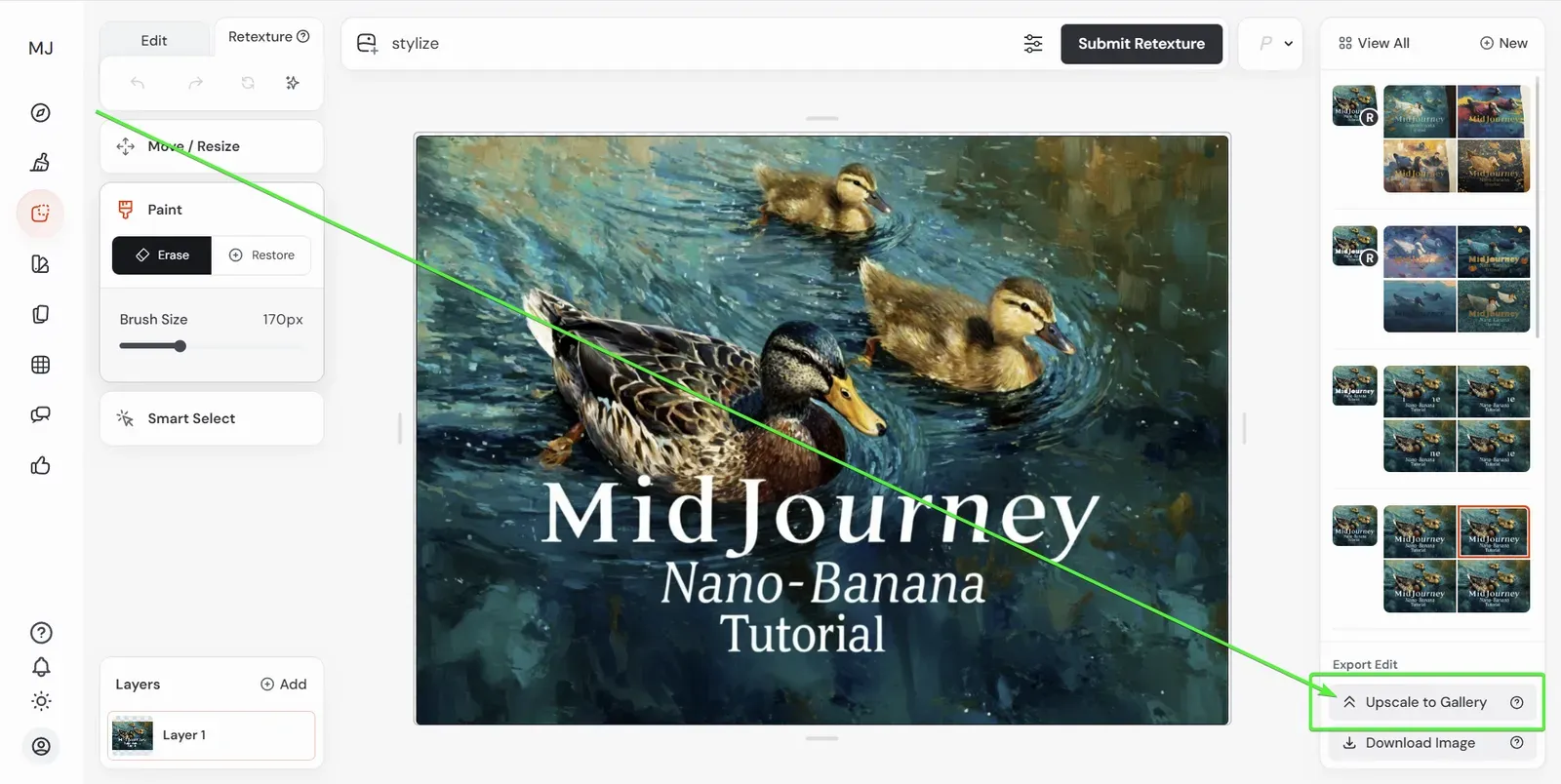
Which produces a higher quality asset we can use for our production featured image in this blog post:
And that’s it! Here’s the final upscalled image:
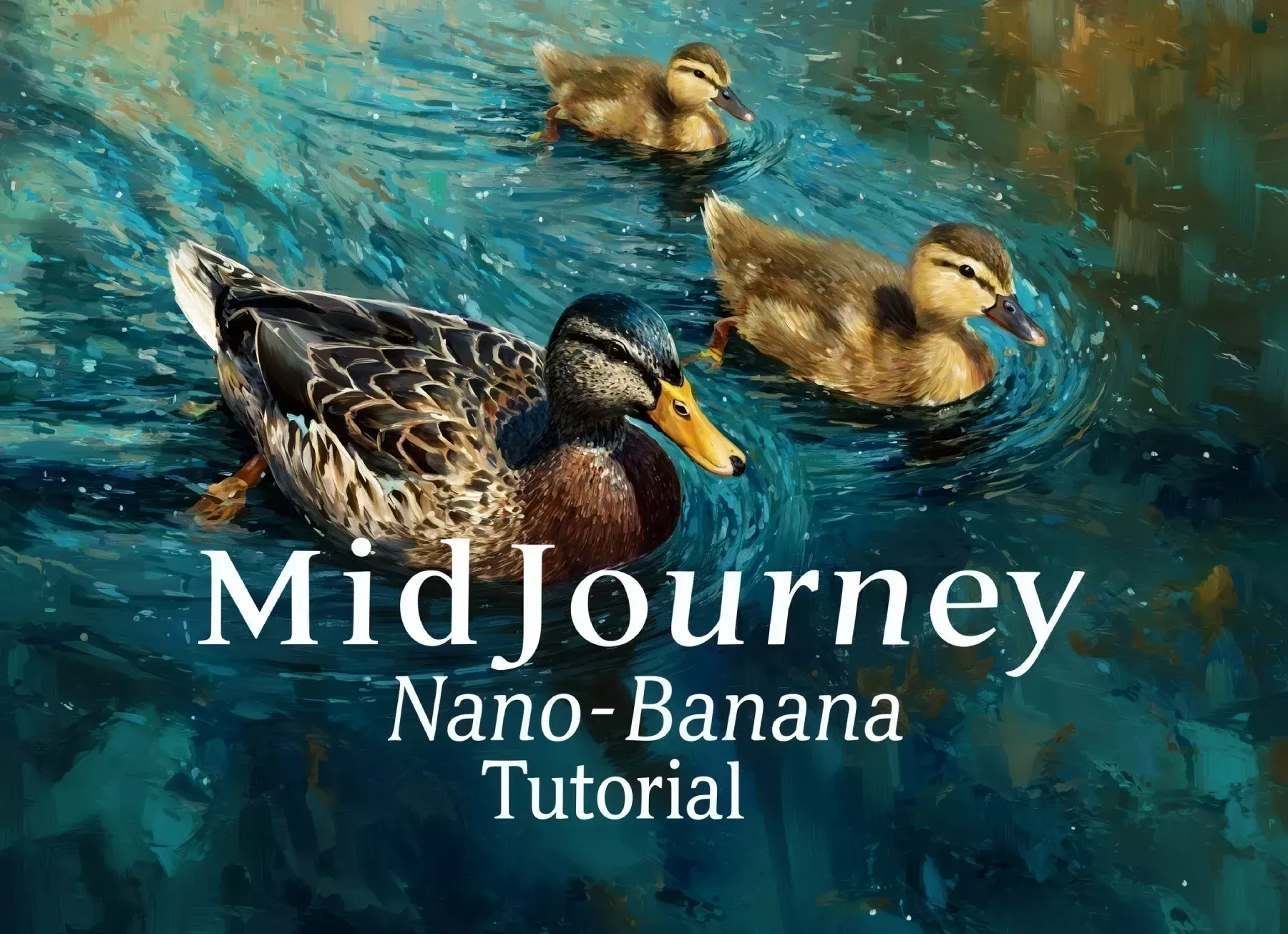
We’ve now produced a featured image using MidJourney and Nano-Banana. The whole process takes roughly an hour if you move quickly.
Also take into consideration that this article/tutorial will most likely age out as MidJourney becomes better. Eventually, their edit tool will eliminate the need to leverage other AI tools like Nano-Banana. At least that is the hope.
—- before we end this article, let’s continue to explore some advanced techniques.
Altering Composition
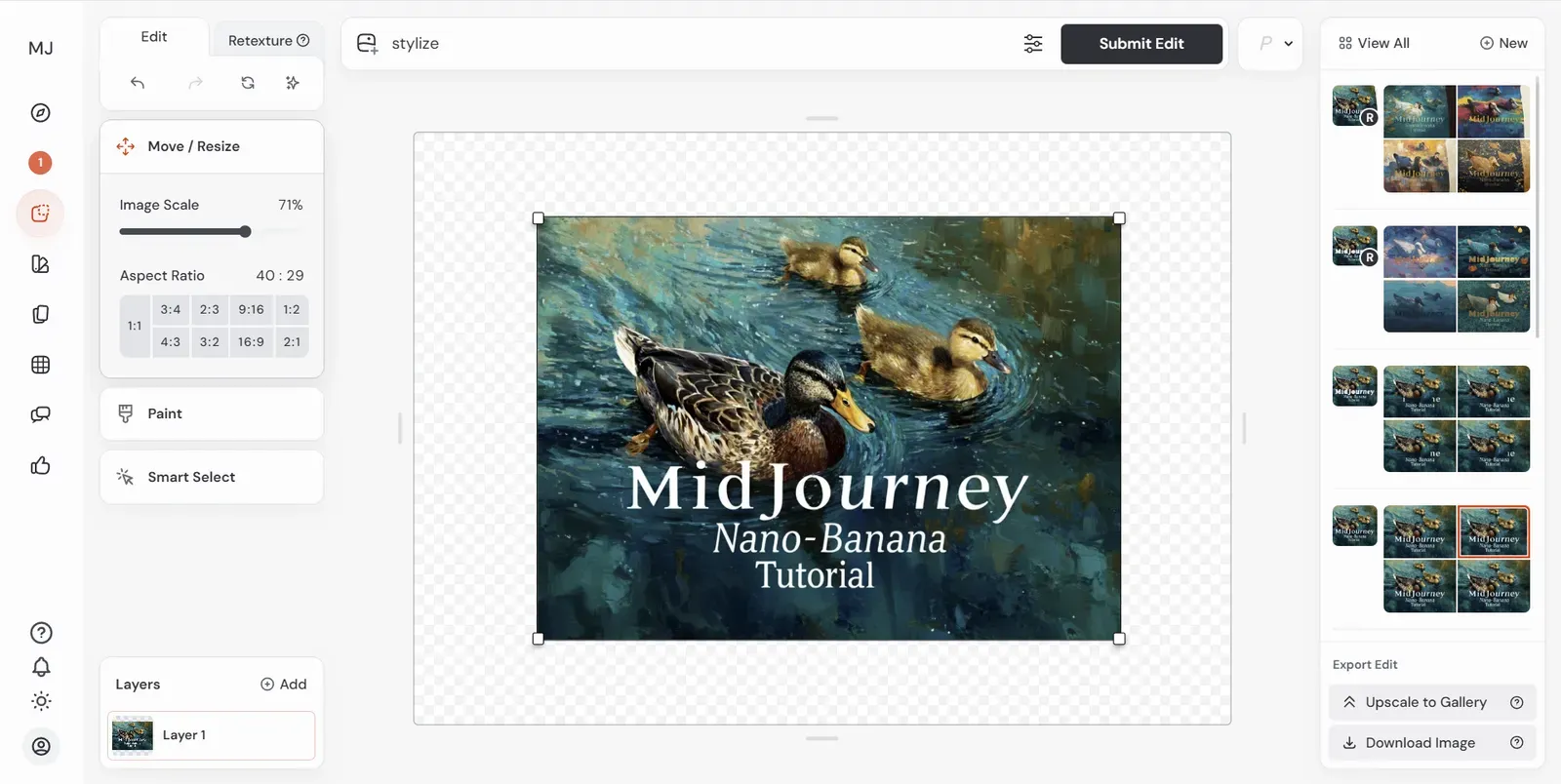
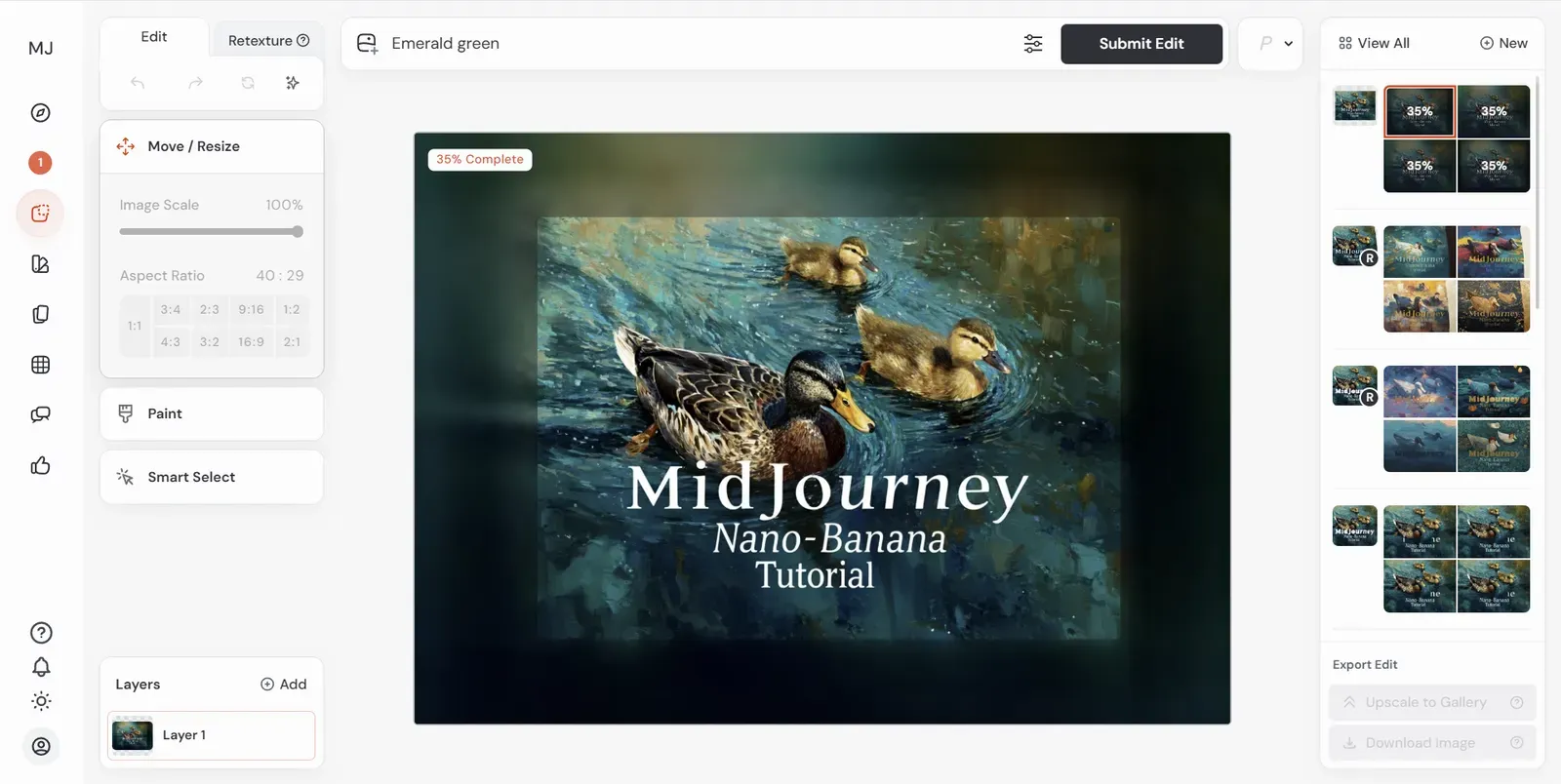
Inside MidJourney’s edit tool, we can resize our current iteration and use generative fill techniques to alter the final composition:
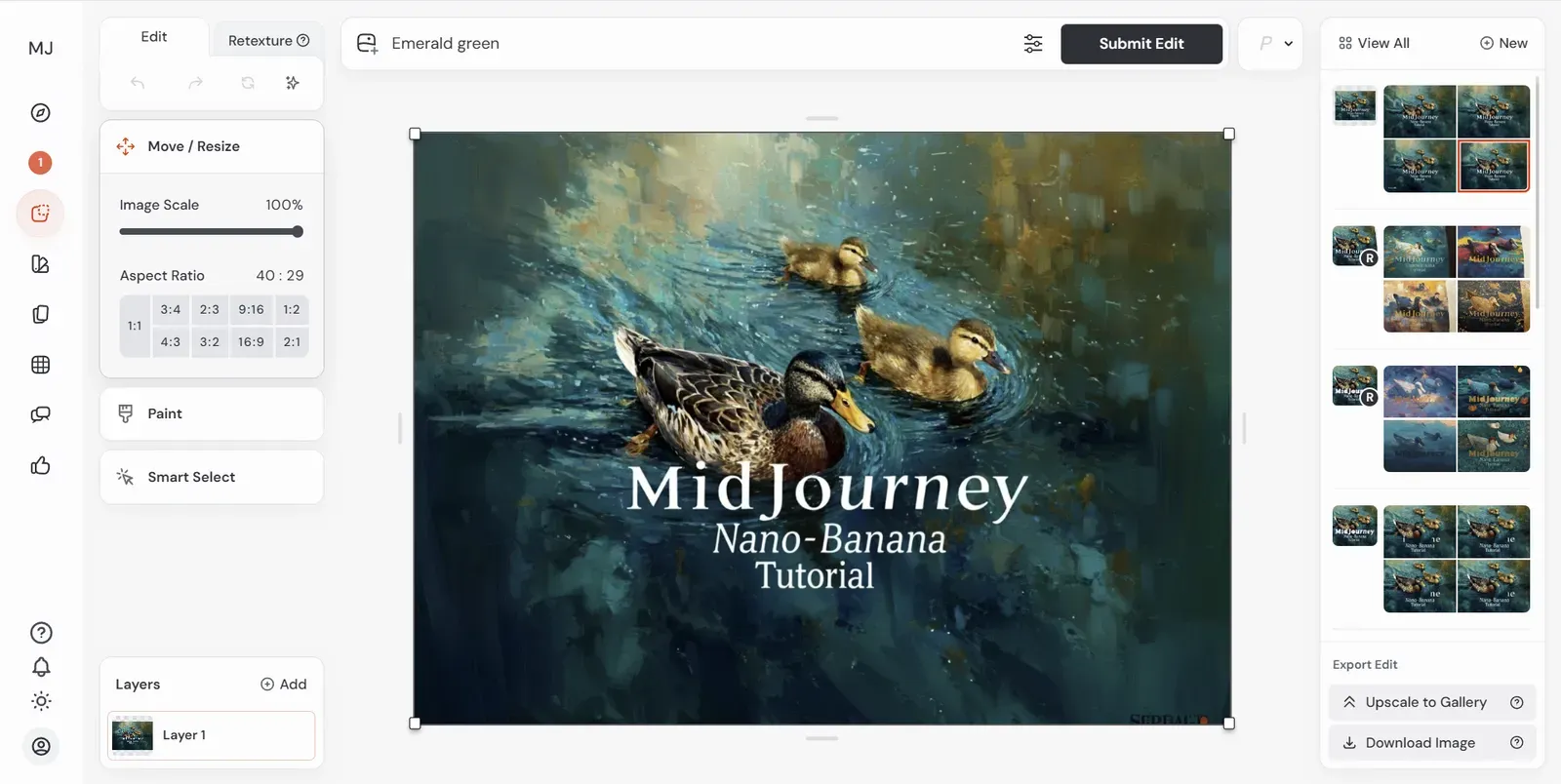
And after generating, we clear up additional margin space for our graphic:
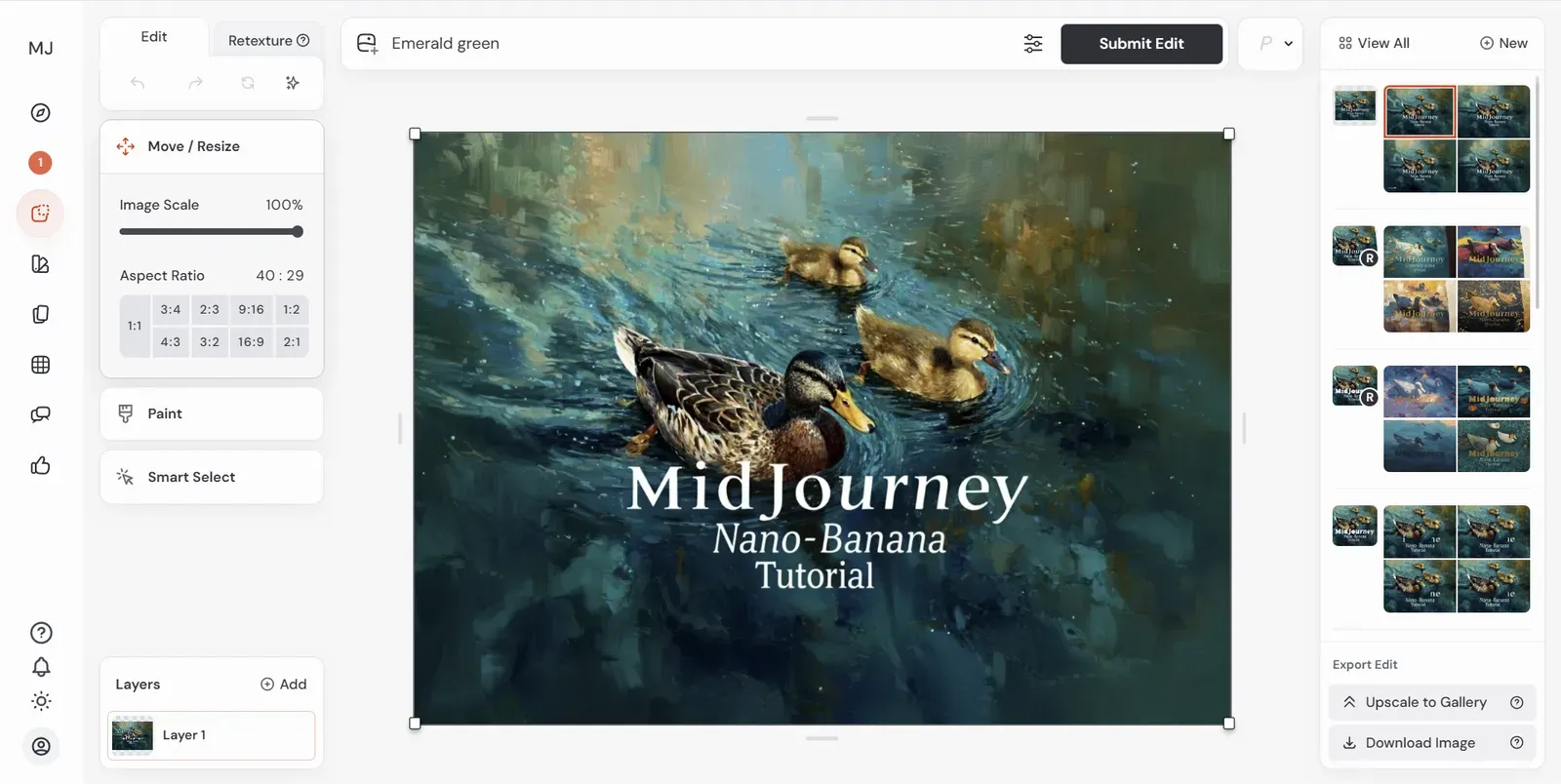
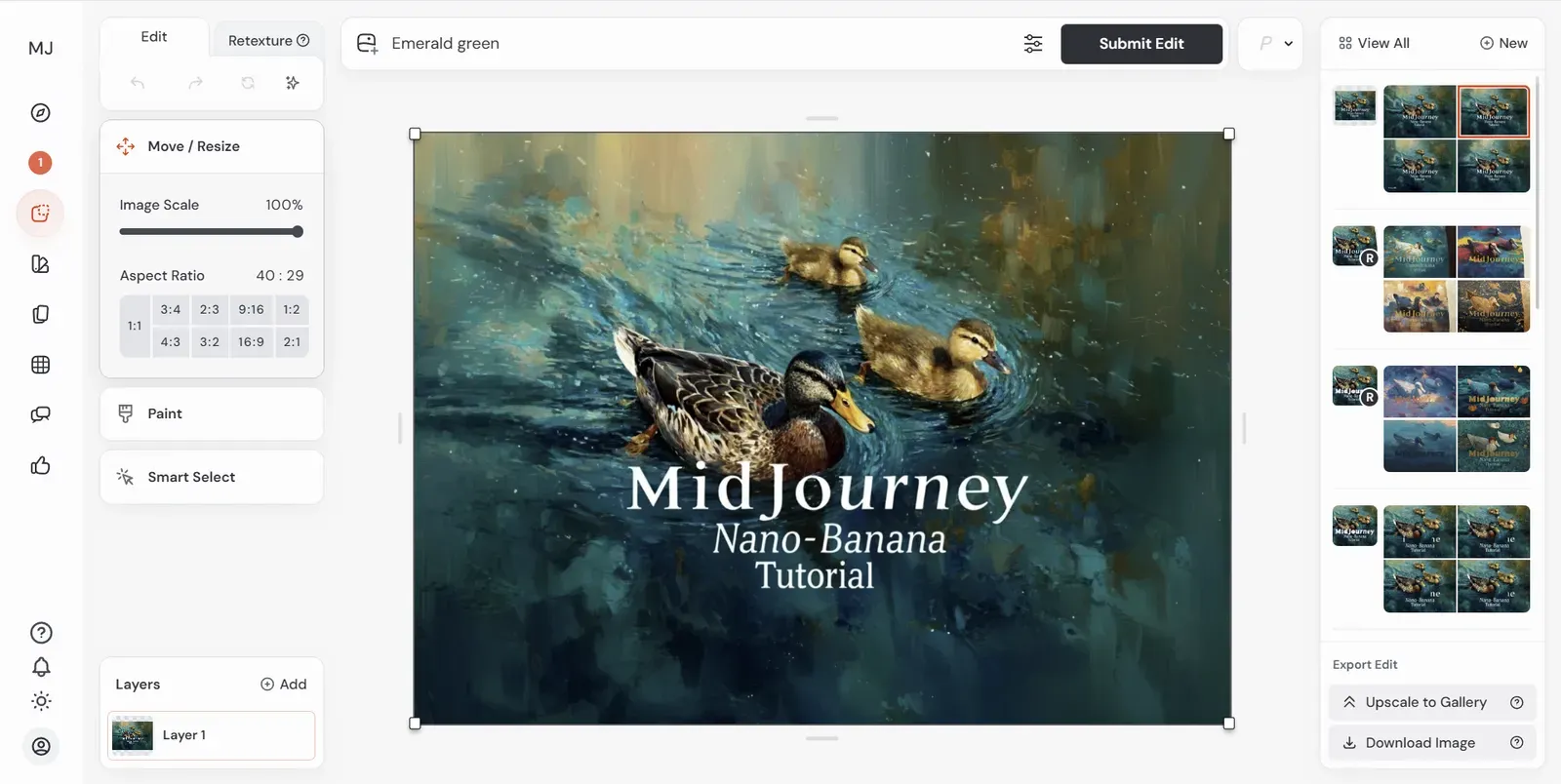
Having some fun with generative fill
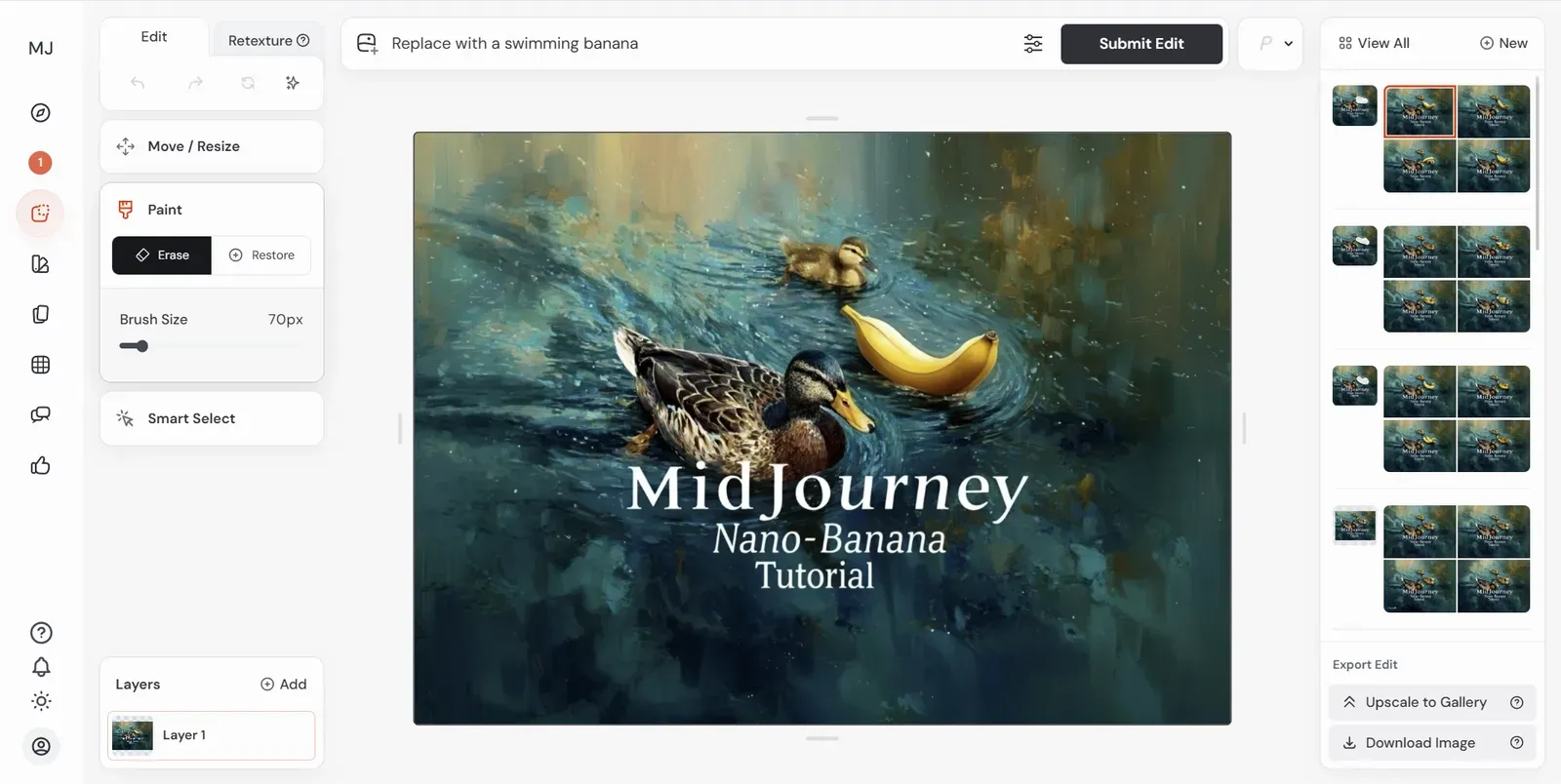
Don’t forget to have some fun. The heart enjoys what is novel. Beauty and satire often go hand in hand. And MidJourney’s generative fill tool can help us significantly modify our images when we need changes.
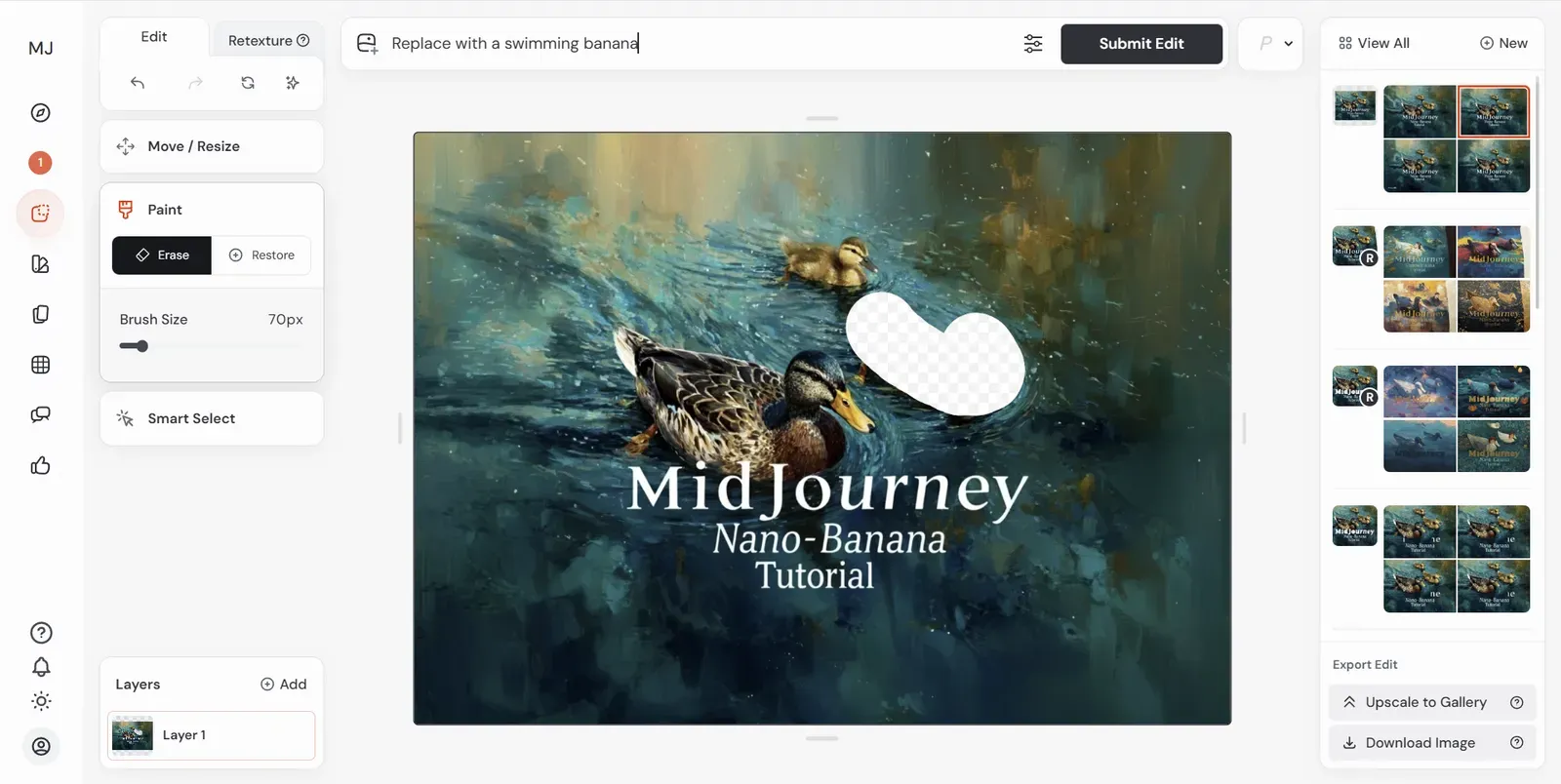
Let’s peel back the curtain:
Retexturizing images
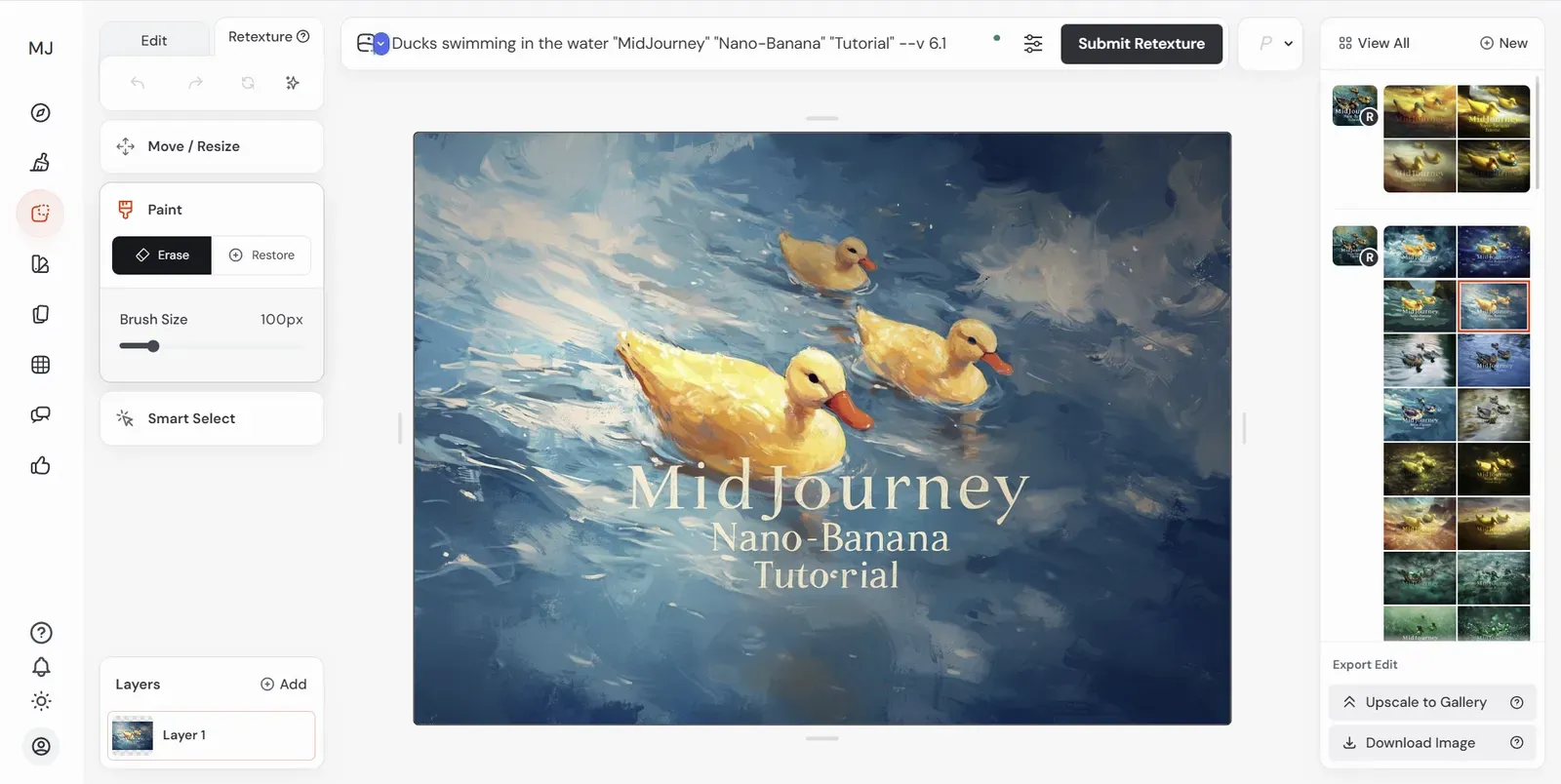
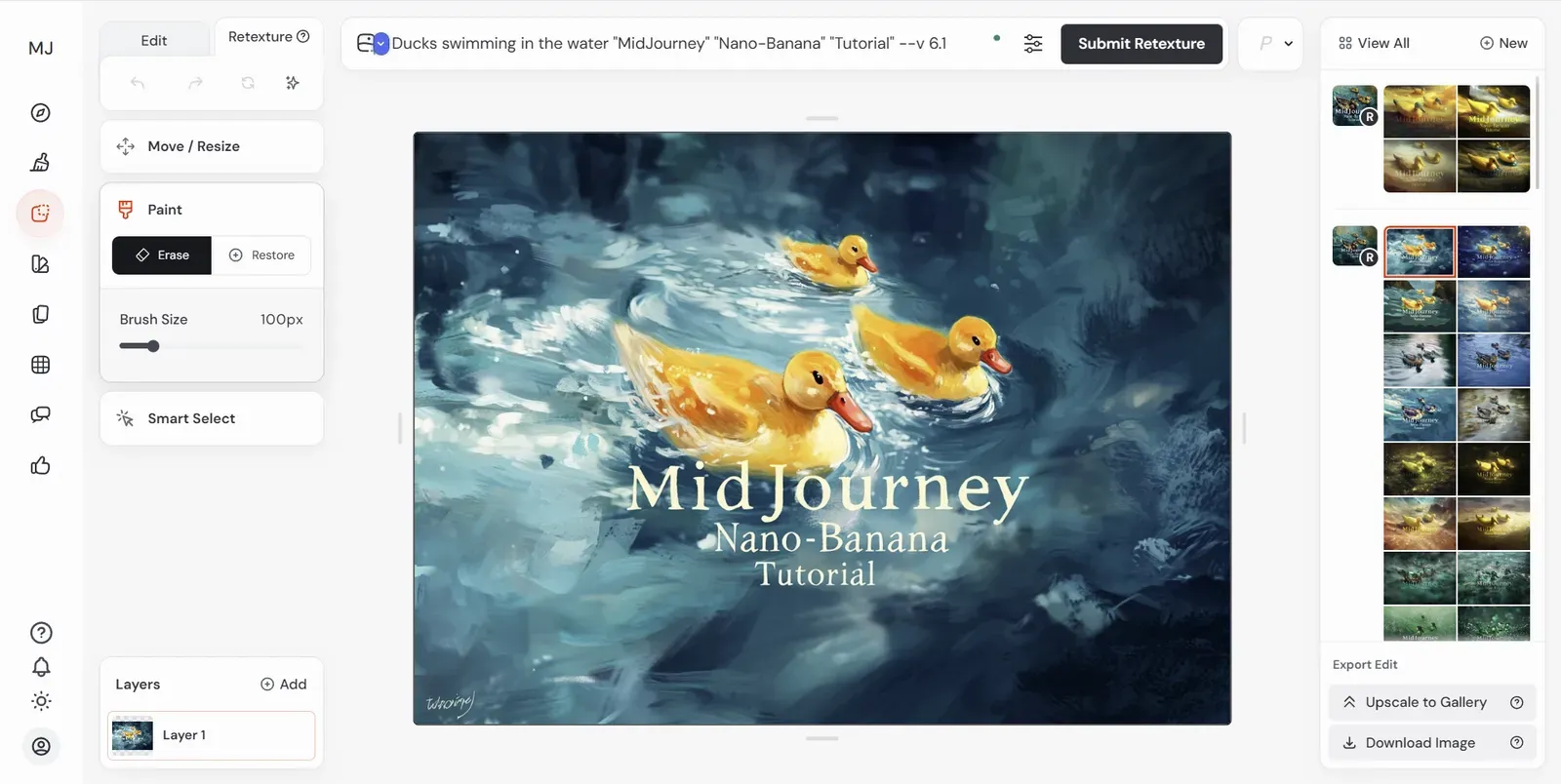
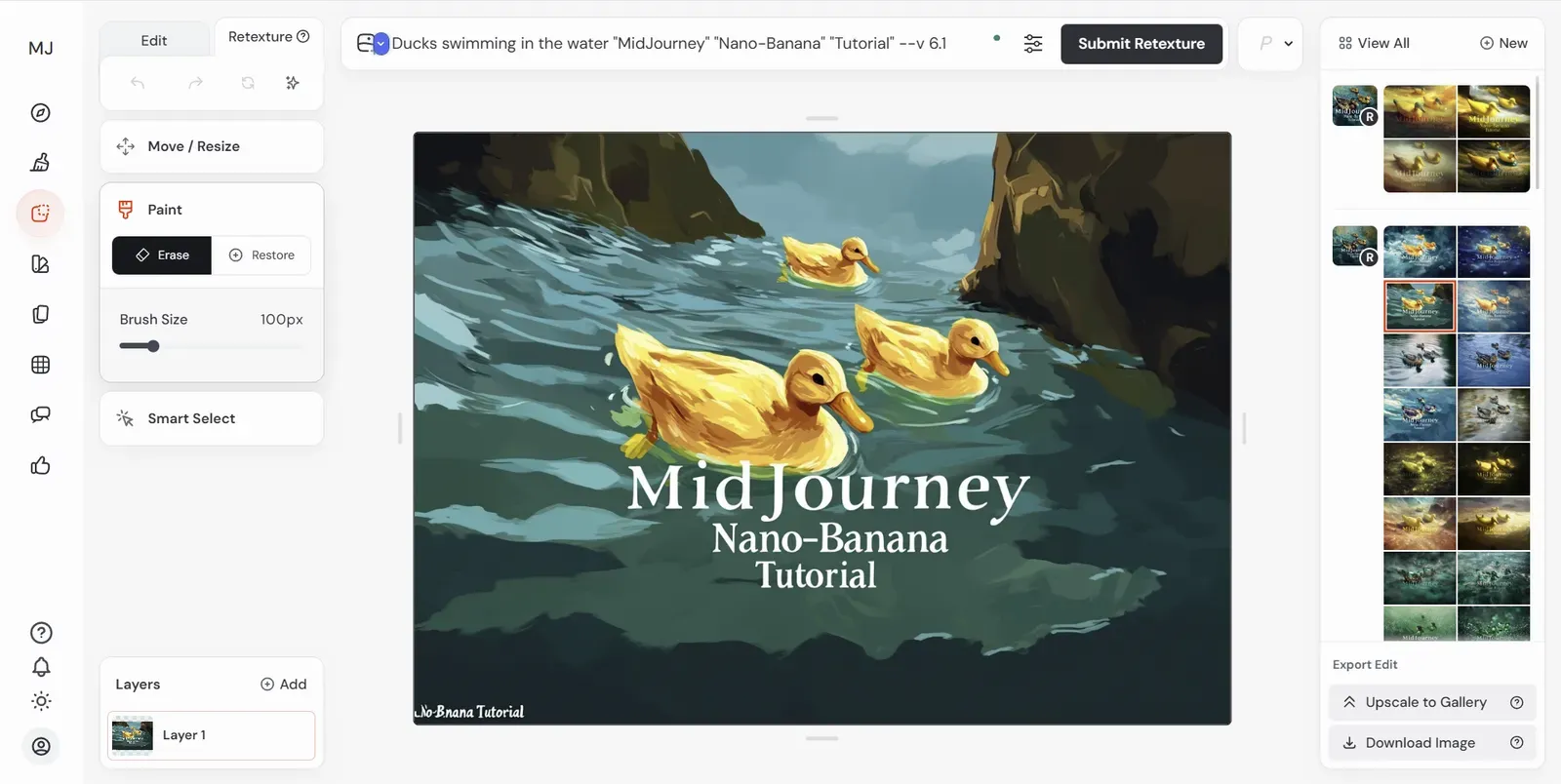
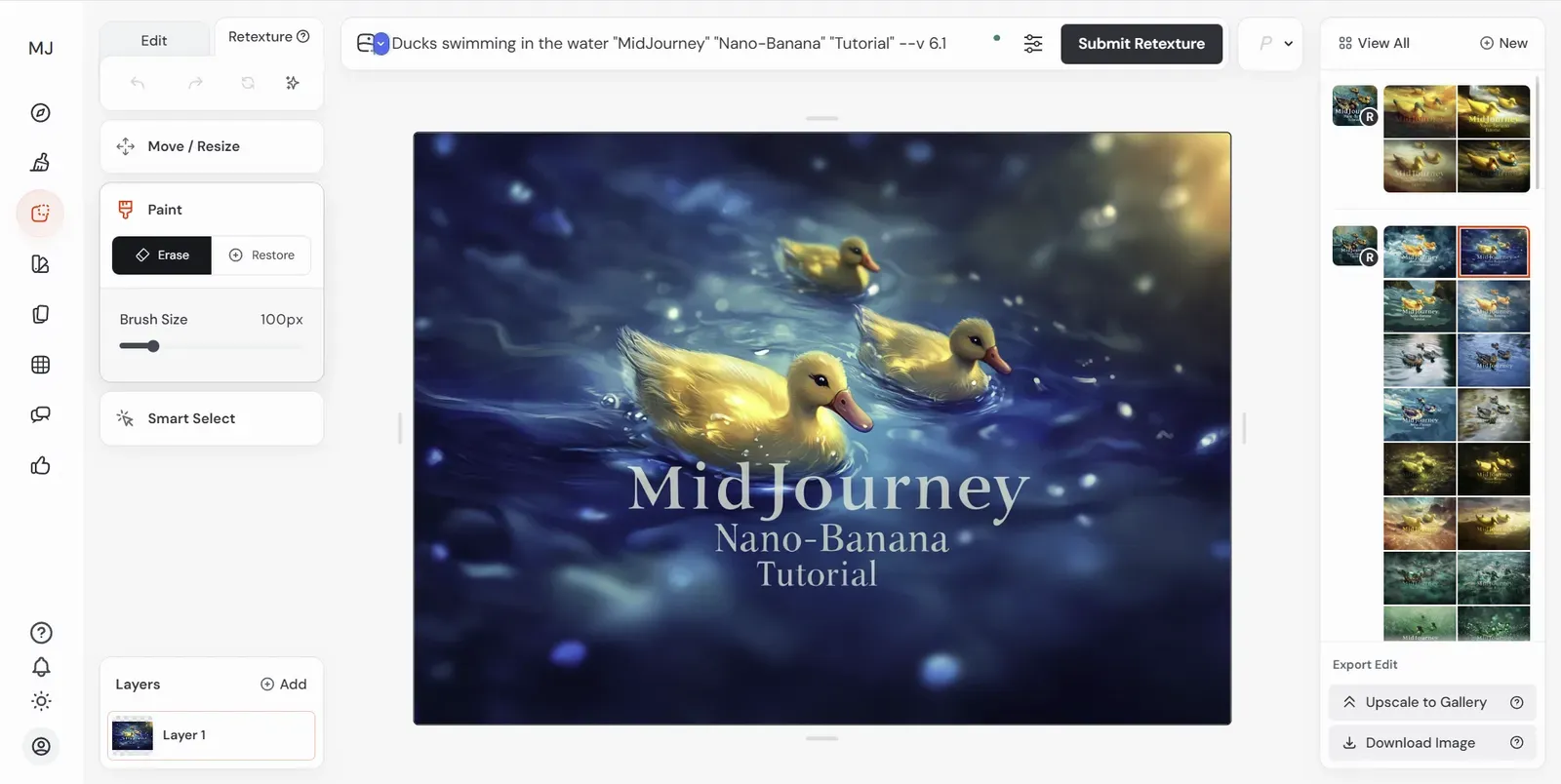
MidJourney’s edit tool offers a feature to “retexturize” an image based on a prompt.
This can allow your final image to be reimagined in different ways. Be careful, though, because this technique can reverse all the work we did to correct the lettering.
To help reduce errors, add the words you would like to retain in quotations like so:
Final Thoughts
That is the end of this tutorial/article. I hope you found it both novel and educational! It was written for the GBTI Network, a private community of product developers who learn from each other on a weekly basis. If you like content like this, consider joining our member community, where we stay on the cutting edge of new trends.
Thanks for paying attention!
It’s nice weather for ducks out there…






0 Comments
No comments yet. Be the first. Members comment from the GBTI local client, where comments are submitted as pull requests and auto-published for paid members.
Become a memberComments are for members. Become a member to join the conversation, or if you already are.
You are signed in as a member. .